

Settings
The Settings page is one long page split into cards. The top few are about your account; the rest control the selected device. Use the device dropdown in Device Configuration to pick which car you are changing.
Account
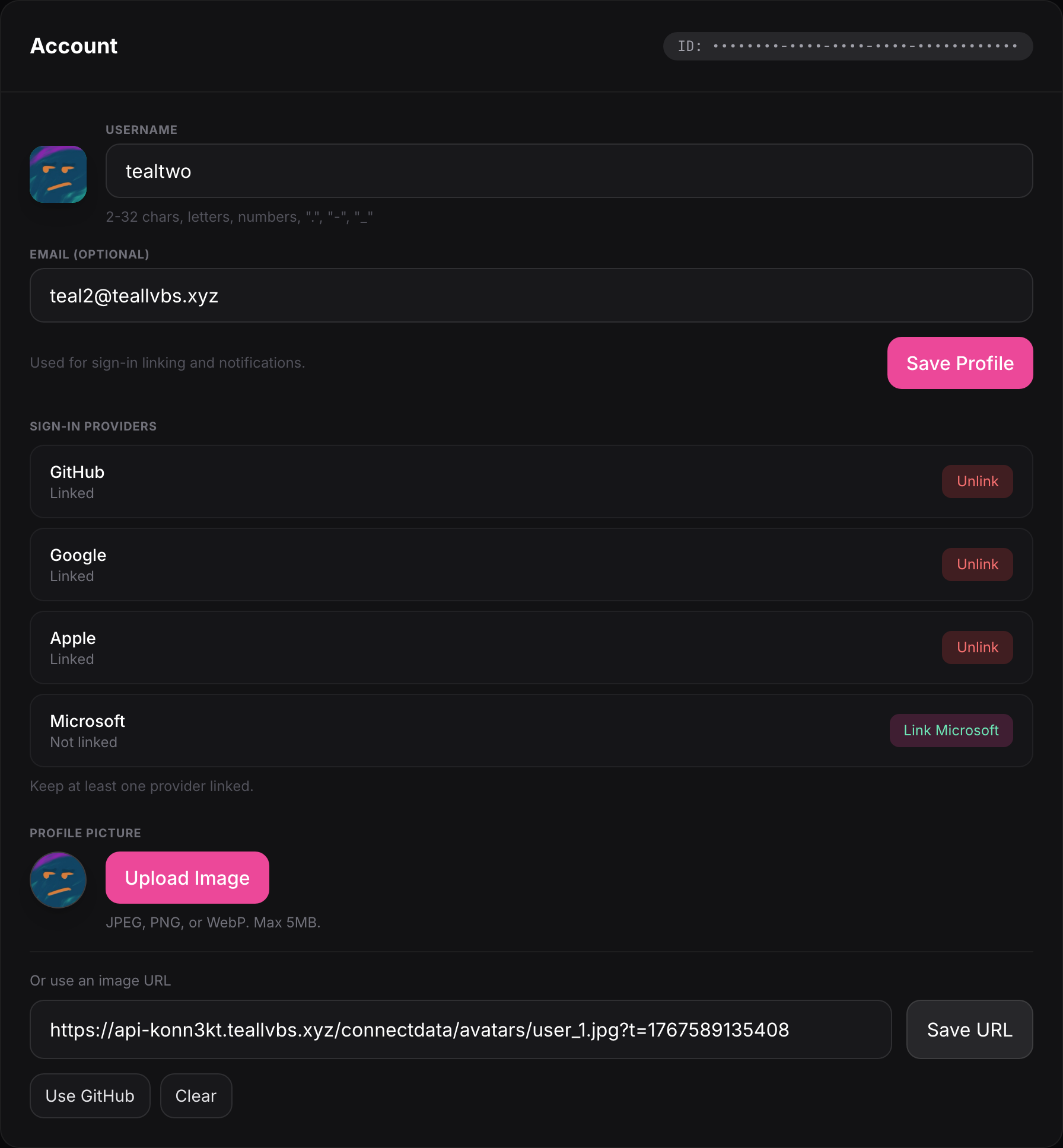
Section titled “Account”Your profile: username, an optional email for sign-in linking and notifications, and your profile picture. Under it you can link or unlink sign-in providers (GitHub, Google, Apple, Microsoft). Keep at least one linked so you can always get back in.
Appearance
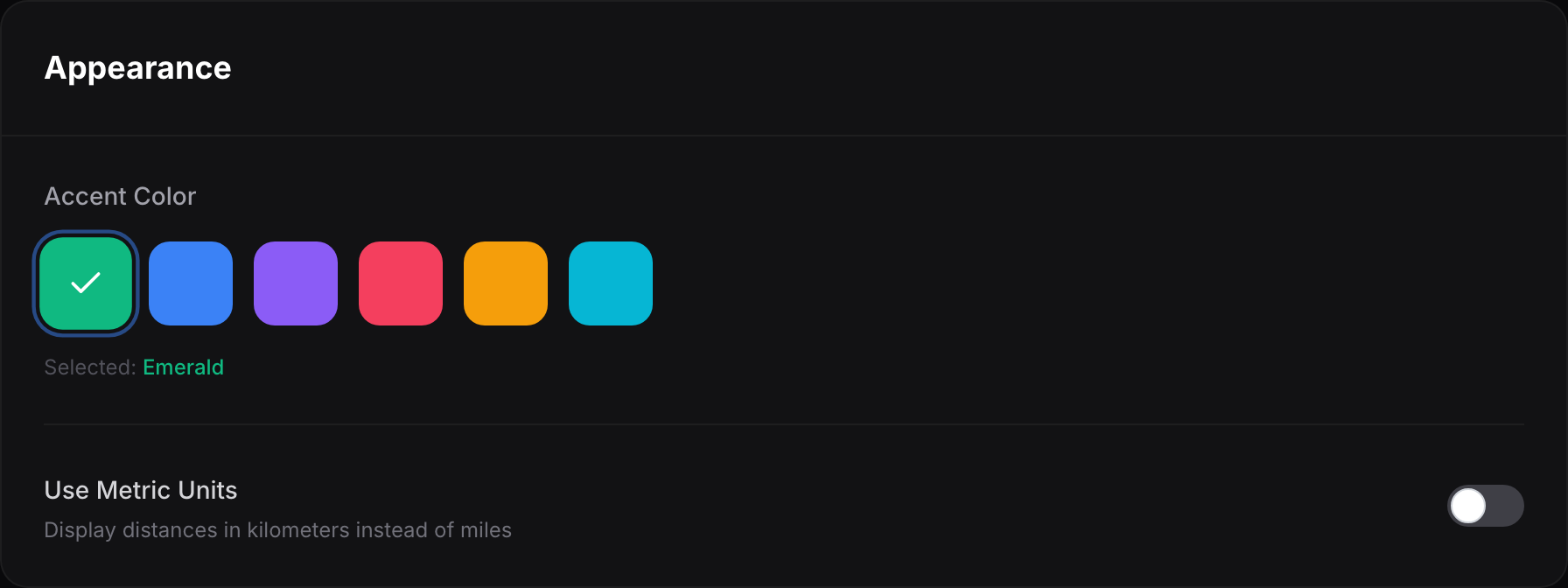
Section titled “Appearance”Pick an Accent Color for the app from the presets, and choose whether distances show in miles or kilometers with Use Metric Units.
Camera Avoidance
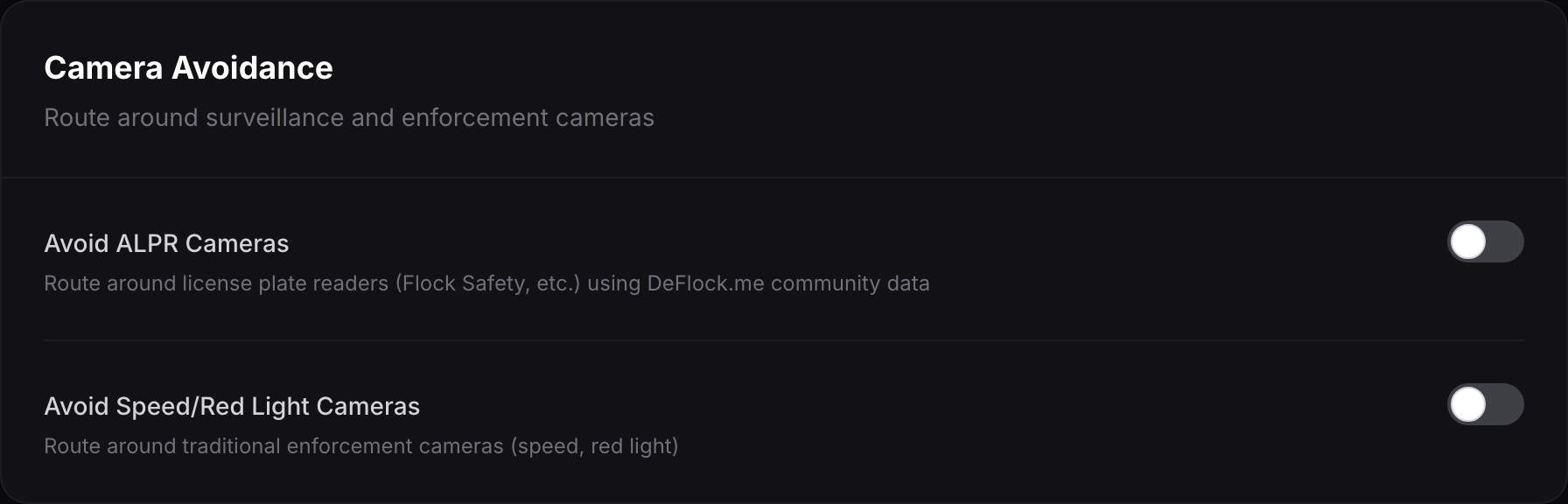
Section titled “Camera Avoidance”Route around cameras when navigating. Avoid ALPR Cameras steers clear of license plate readers using community data, and Avoid Speed/Red Light Cameras avoids traditional enforcement cameras.
Customization
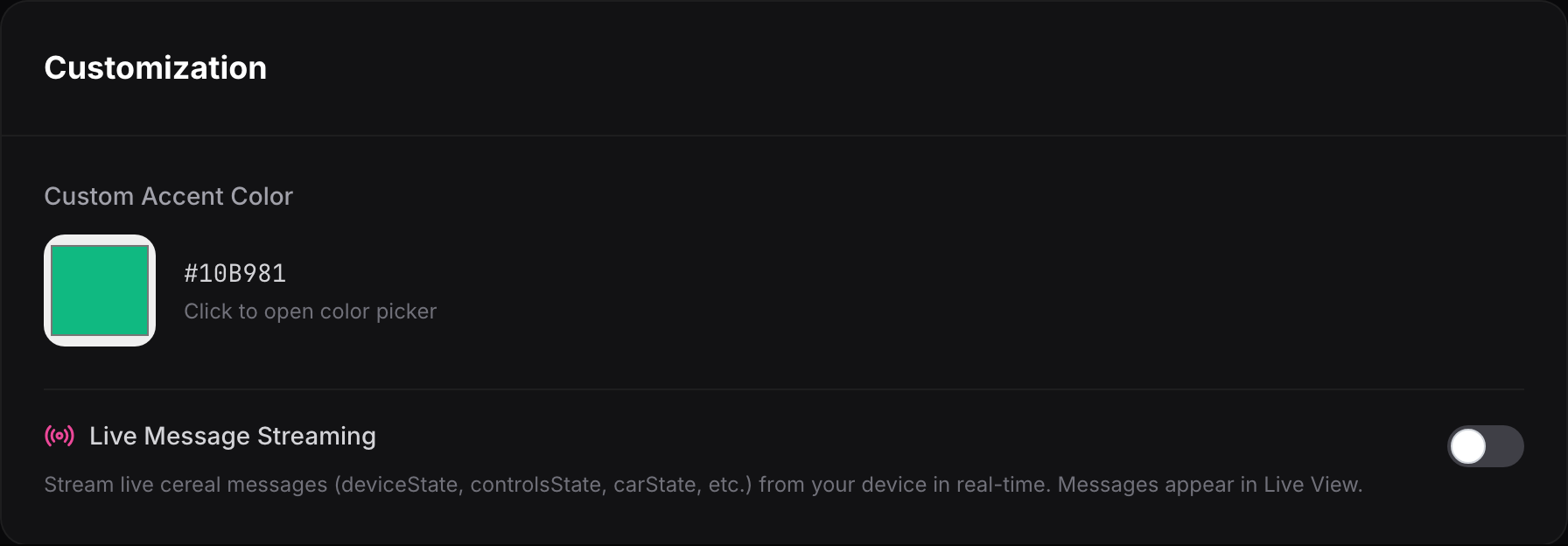
Section titled “Customization”Set a Custom Accent Color by exact hex value instead of a preset, and turn on Live Message Streaming to stream live data from the device (deviceState, controlsState, carState, and more) so it shows up in Live View.
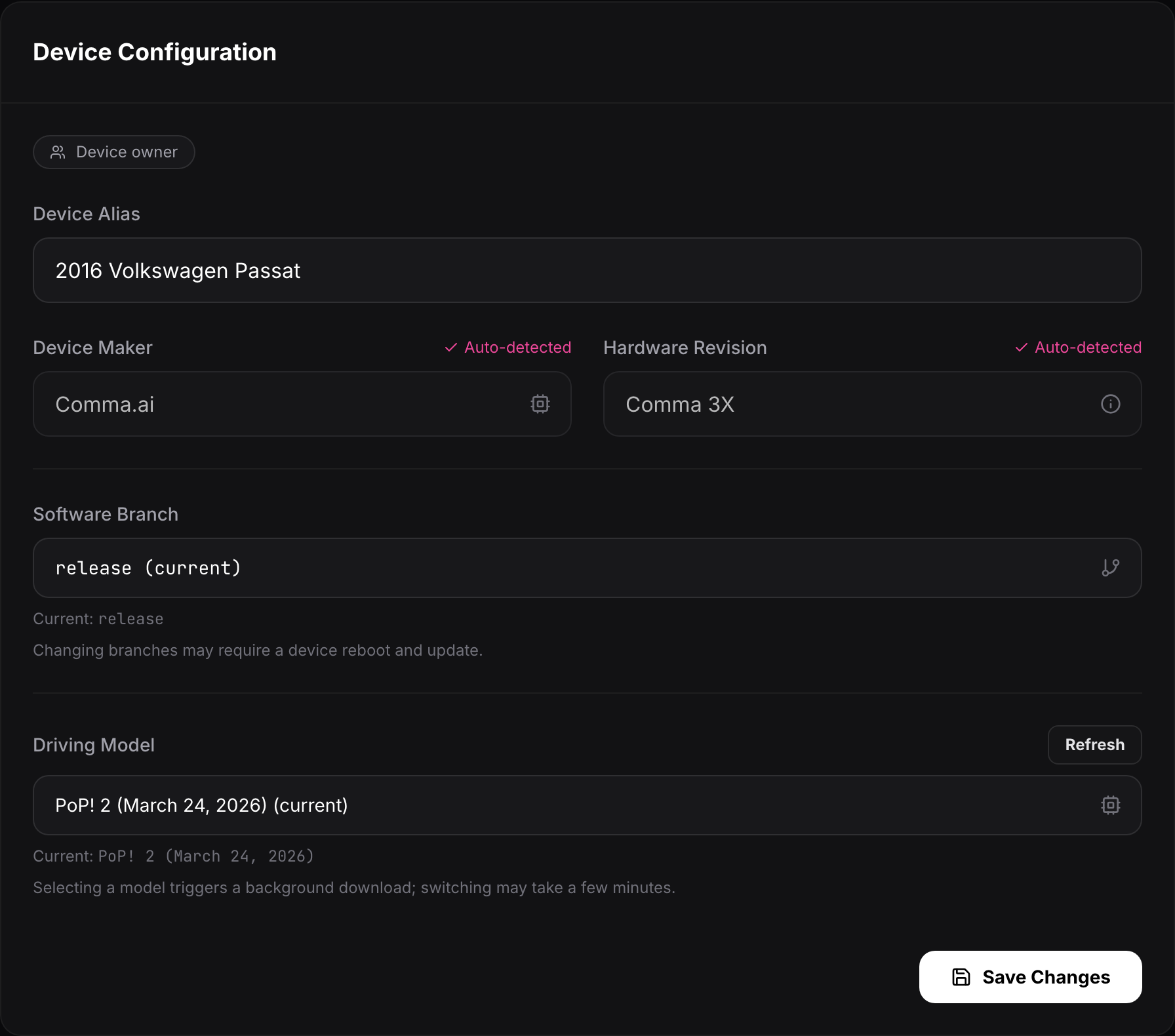
Device Configuration
Section titled “Device Configuration”The core device settings. Rename the device with Device Alias, see its auto-detected maker and hardware revision, switch the Software Branch, and change the Driving Model.
System
Section titled “System”This is the remote control for the device’s own iQ.Pilot settings. From the top of the panel you can turn IQ.Pilot Longitudinal Control on or off, pick a Longitudinal Mode (IQ.Standard, IQ.Dynamic, or IQ.Pilot), open Lateral Settings, flip the Enable WebSSH Access and Cellular Uploads toggles, turn on Enable Encryption at Rest, and Reboot the device. Below those, a row of Manage buttons open the full device settings areas, each documented on its own below.
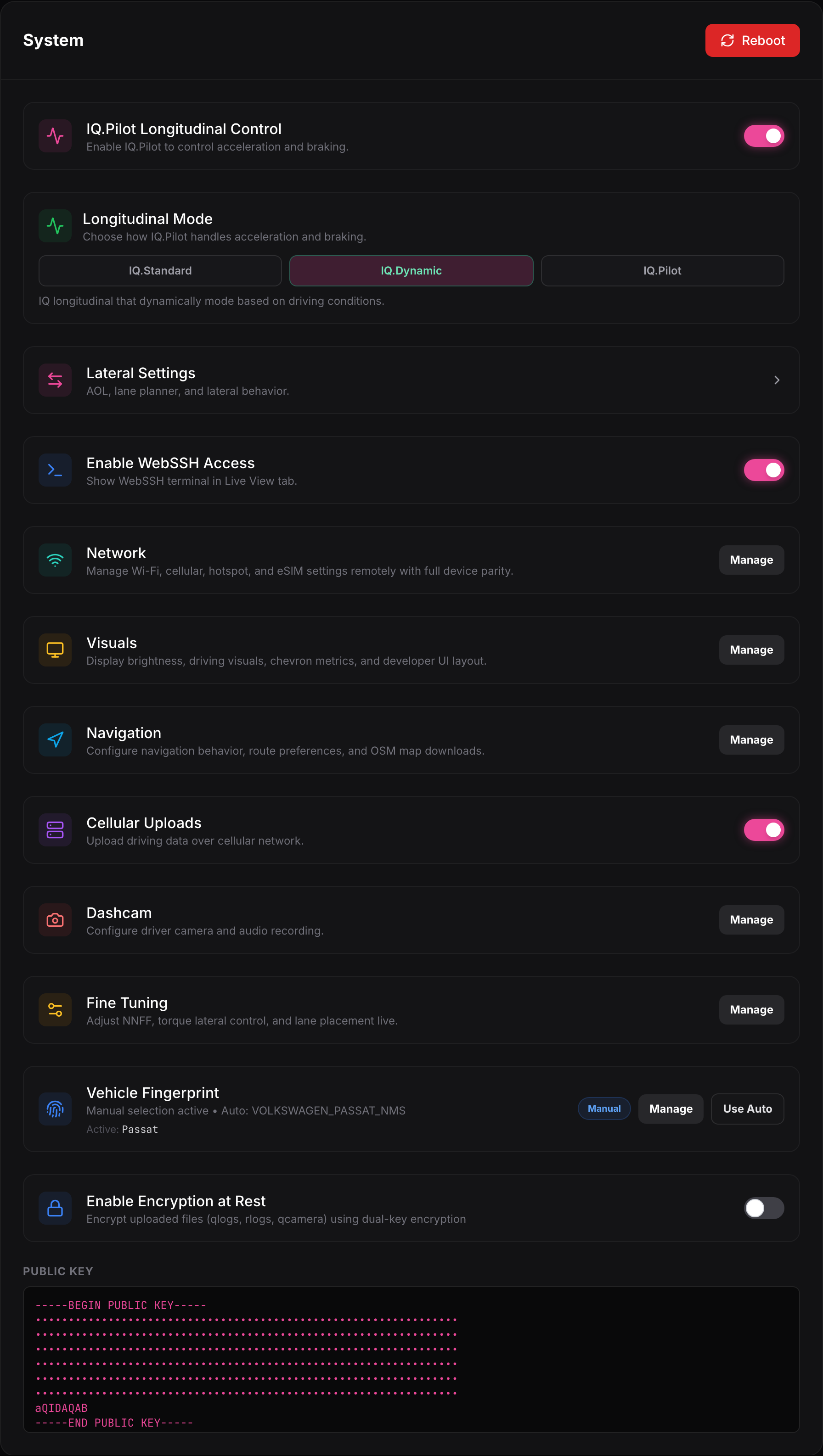
Each Manage button opens a full device settings menu. Every one of these is documented setting by setting under Device Settings:
- Network — Wi-Fi, cellular, hotspot, and eSIM.
- Visuals — display brightness and the on-road overlays.
- Navigation — guidance, speed targets, routing, and offline maps.
- Dashcam — whether the device saves driving footage.
- Fine Tuning — torque tuning, lane changes, and lane placement.
- Vehicle Fingerprint — which car the device identifies as.
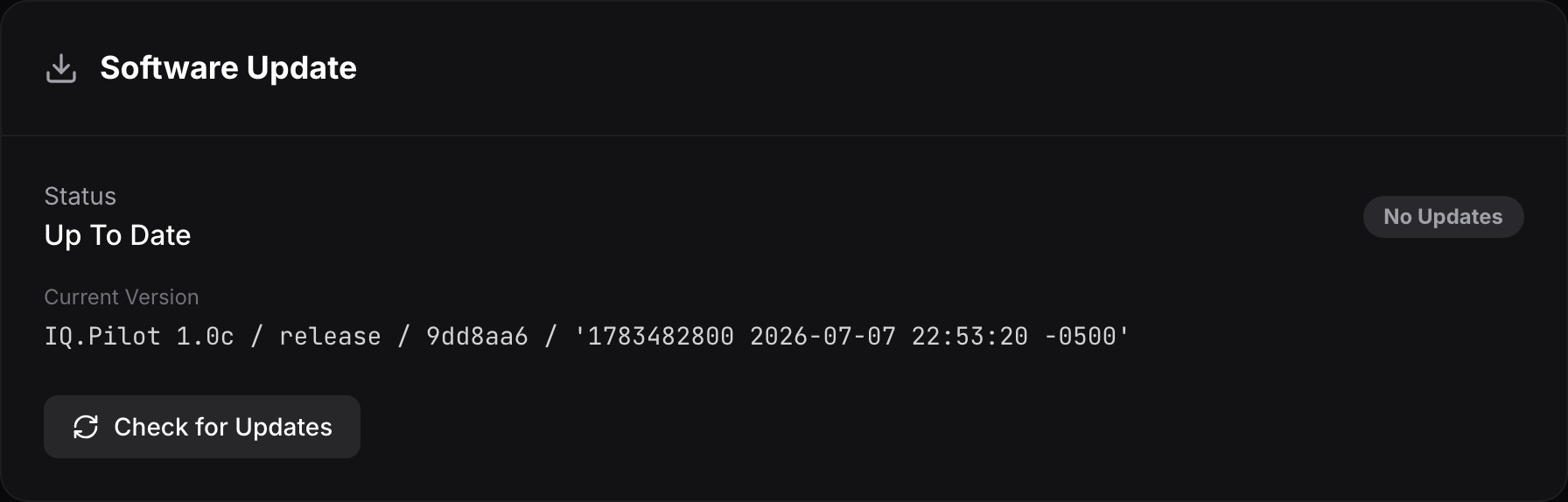
Software Update
Section titled “Software Update”Shows whether the device is up to date and its exact current version. Check for Updates looks for a newer build.
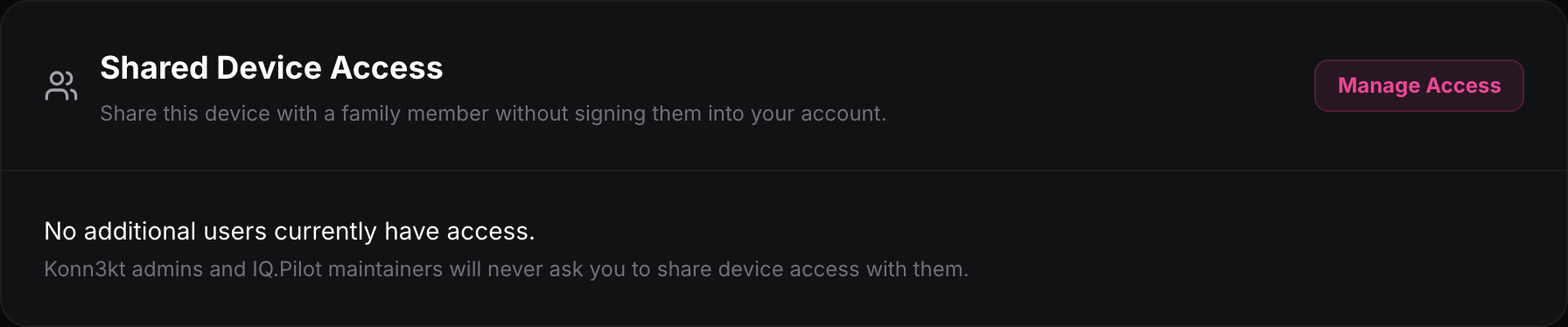
Shared Device Access
Section titled “Shared Device Access”Share a device with a family member without signing them into your account. Manage Access controls who can see it.
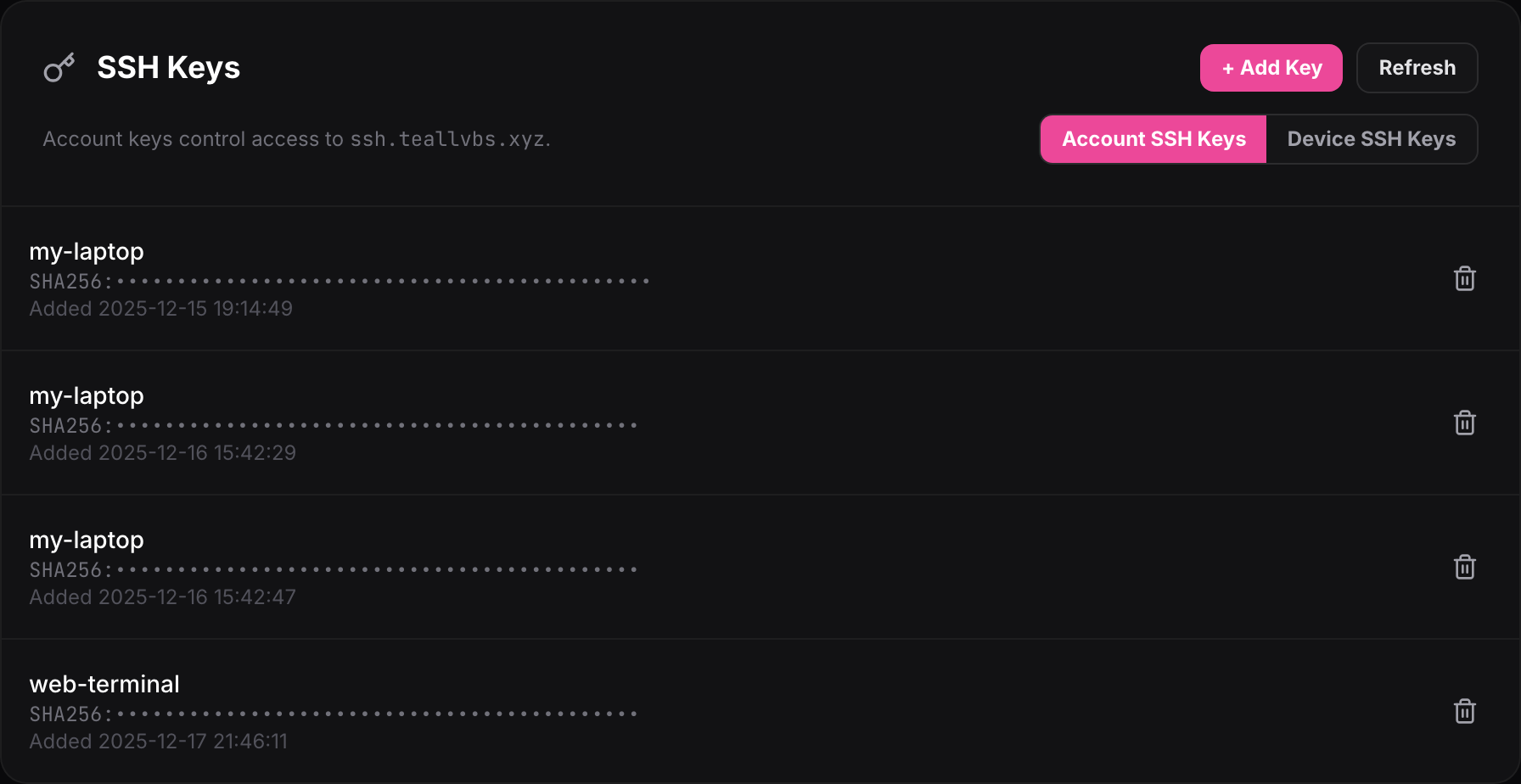
SSH Keys
Section titled “SSH Keys”Manage the SSH keys that can reach the device. Account SSH Keys apply to your account, and Device SSH Keys apply to this device. Add a key or remove ones you no longer use.
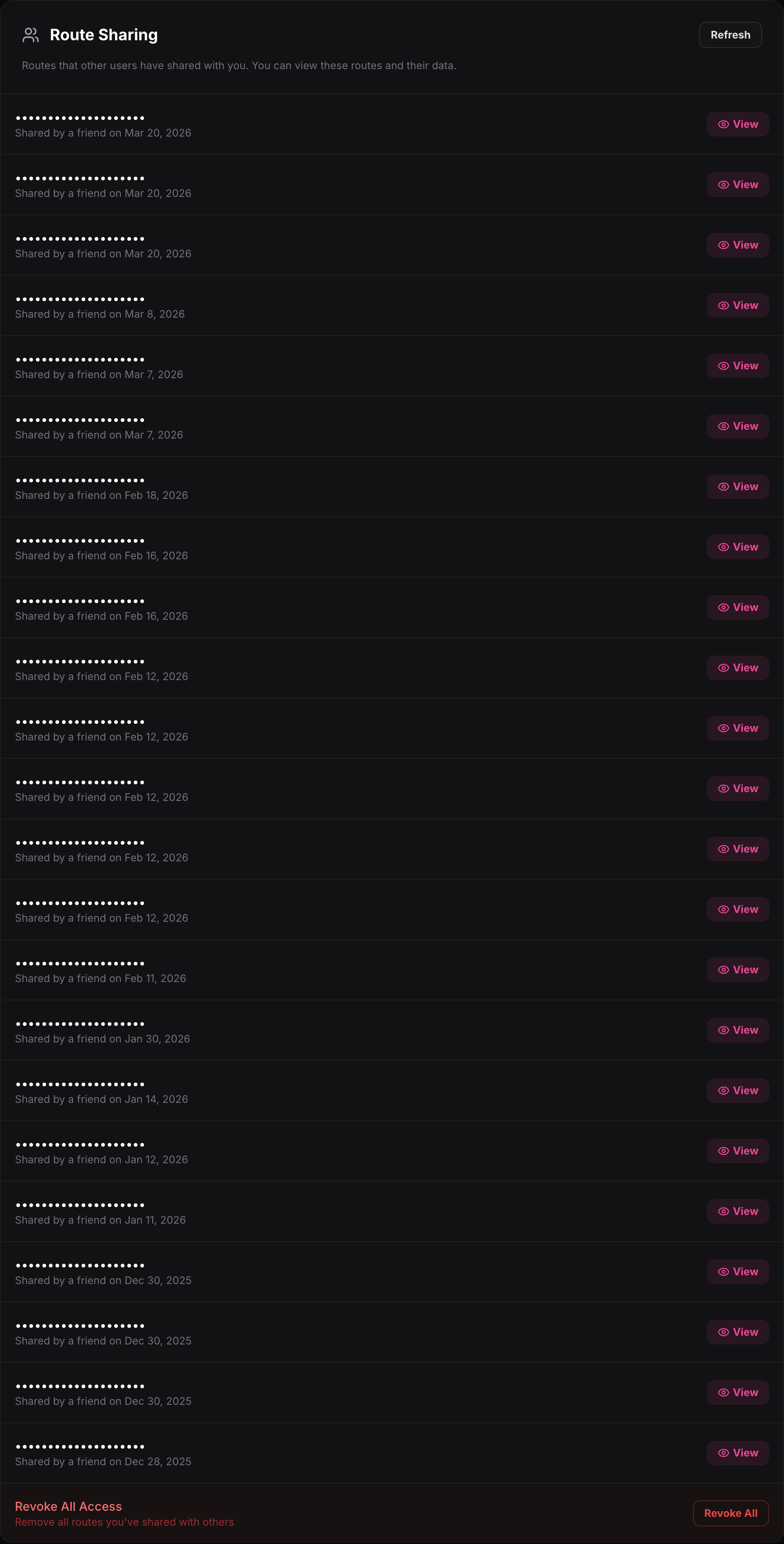
Route Sharing
Section titled “Route Sharing”Routes that other users have shared with you. You can view a shared route and its data, or revoke access.
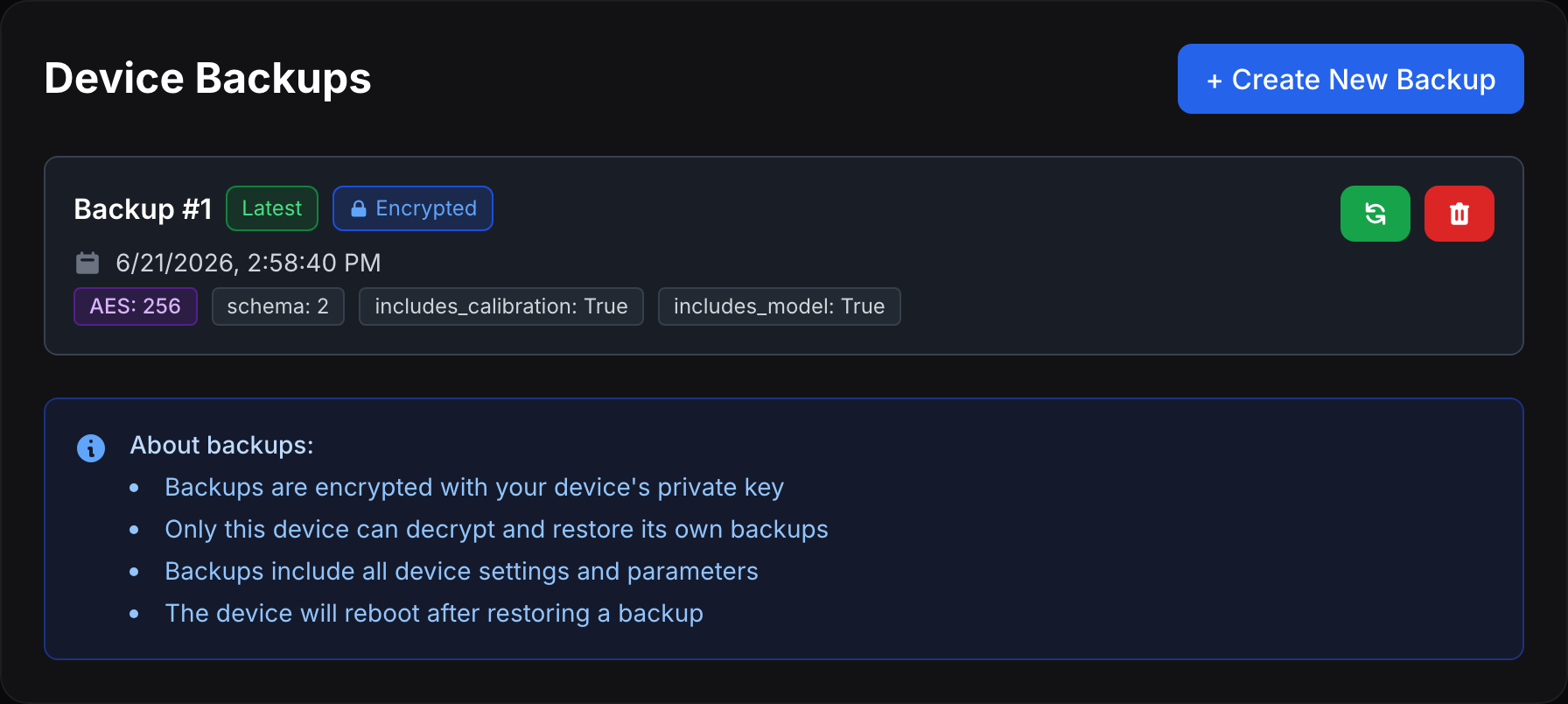
Device Backups
Section titled “Device Backups”Encrypted backups of the device’s settings and parameters. Create New Backup saves the current state, and you can restore one later. Backups are encrypted with the device’s own key, so only that device can restore them, and it reboots after a restore.
Danger Zone
Section titled “Danger Zone”Unpair Device removes the device from your account. This cannot be undone, so it sits on its own at the bottom.
