

Visuals & Display
Cosmetic and display settings. None of these change how the car drives. They control what you see on the screen while driving and while parked, plus screen brightness and timeouts.
Force Mici UI
Section titled “Force Mici UI”Use the smaller comma 4 interface even on a comma 3 or 3X. Most people leave this off.
Where to find it
Display Brightness
Section titled “Display Brightness”
Onroad Brightness
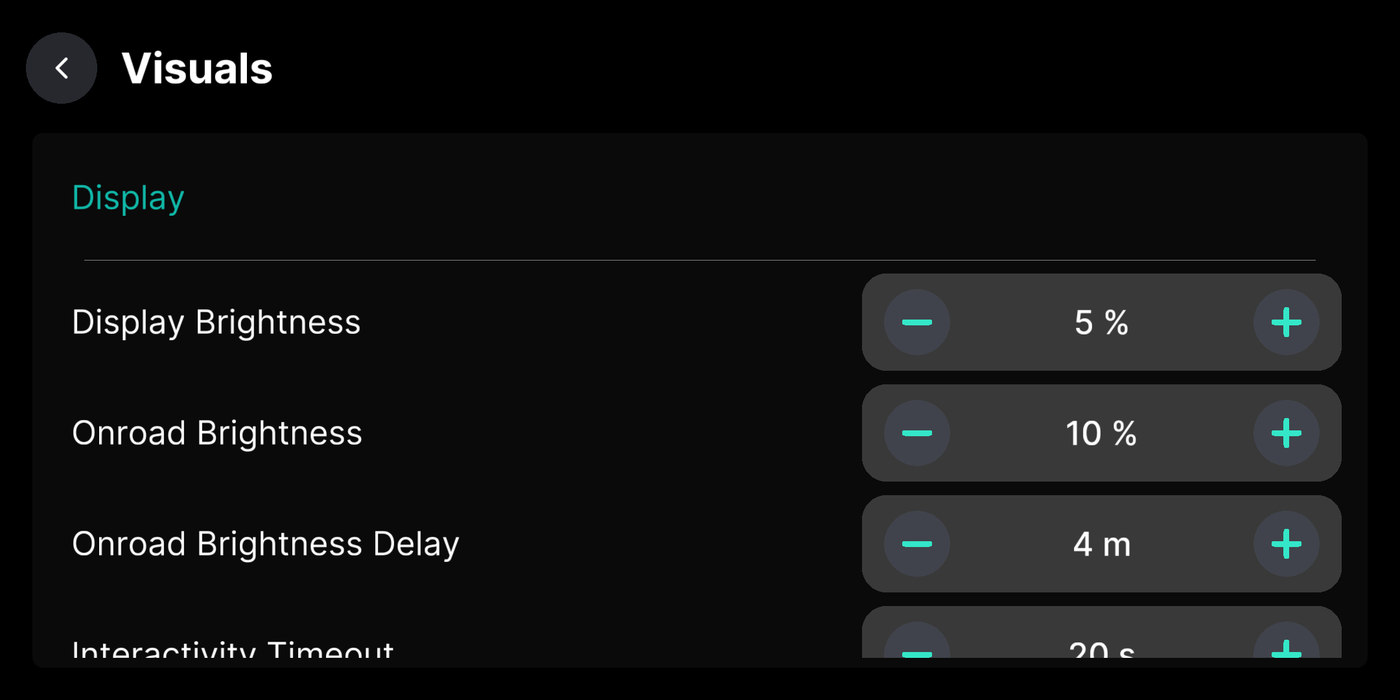
Section titled “Onroad Brightness”Screen brightness while driving. Auto follows the light sensor, or set a fixed level.
Where to find it
Onroad Brightness Delay
Section titled “Onroad Brightness Delay”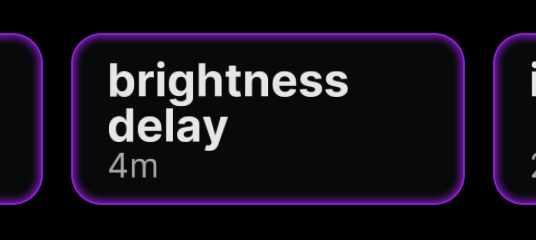
Interactivity Timeout
Section titled “Interactivity Timeout”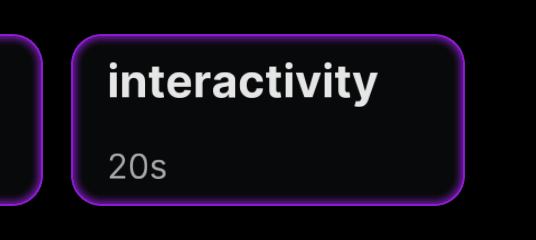
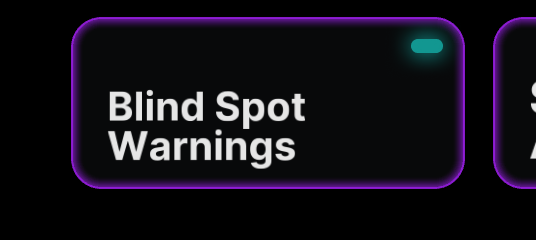
Show Blind Spot Warnings
Section titled “Show Blind Spot Warnings”Show a warning when a car is in your blind spot. Needs factory blind spot monitoring.
Where to find it
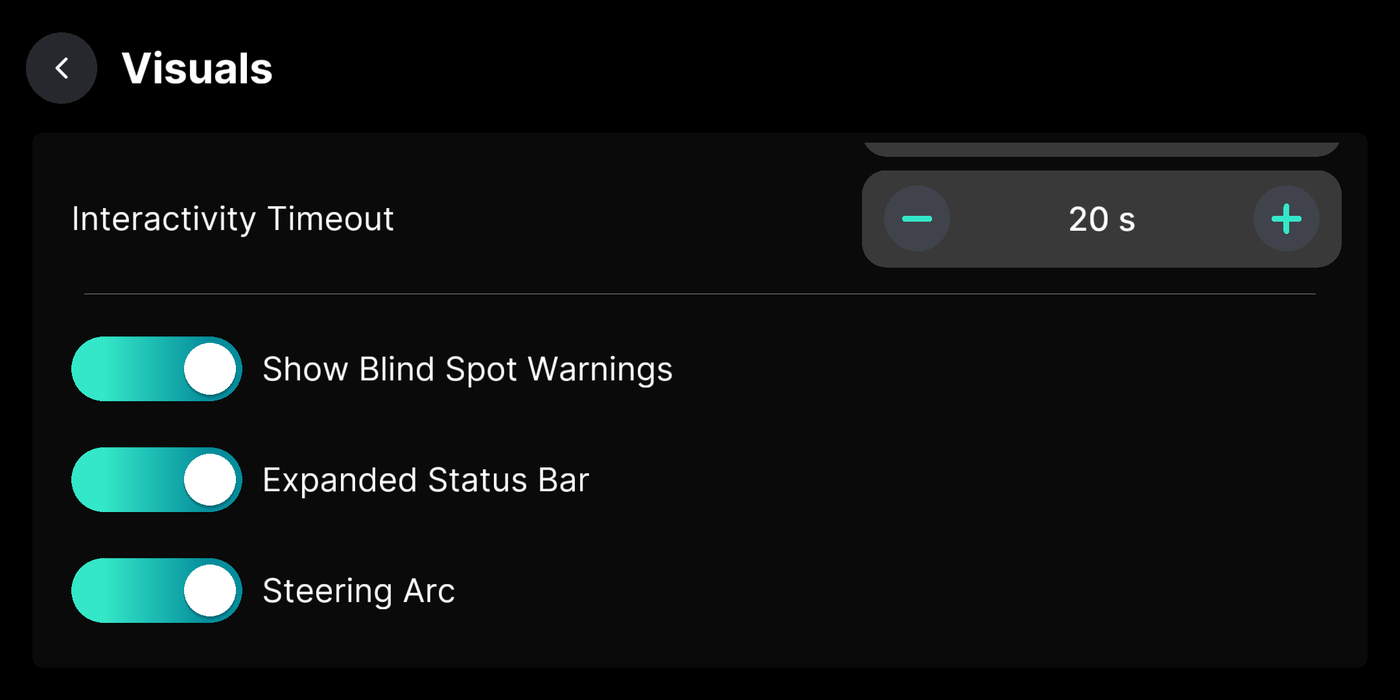
Expanded Status Bar
Section titled “Expanded Status Bar”Steering Arc
Section titled “Steering Arc”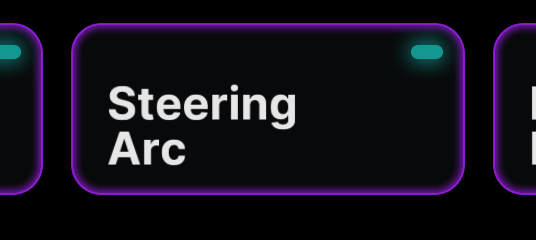
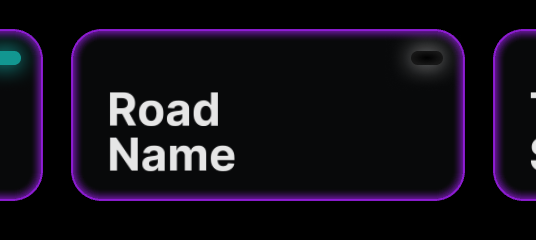
Display Road Name
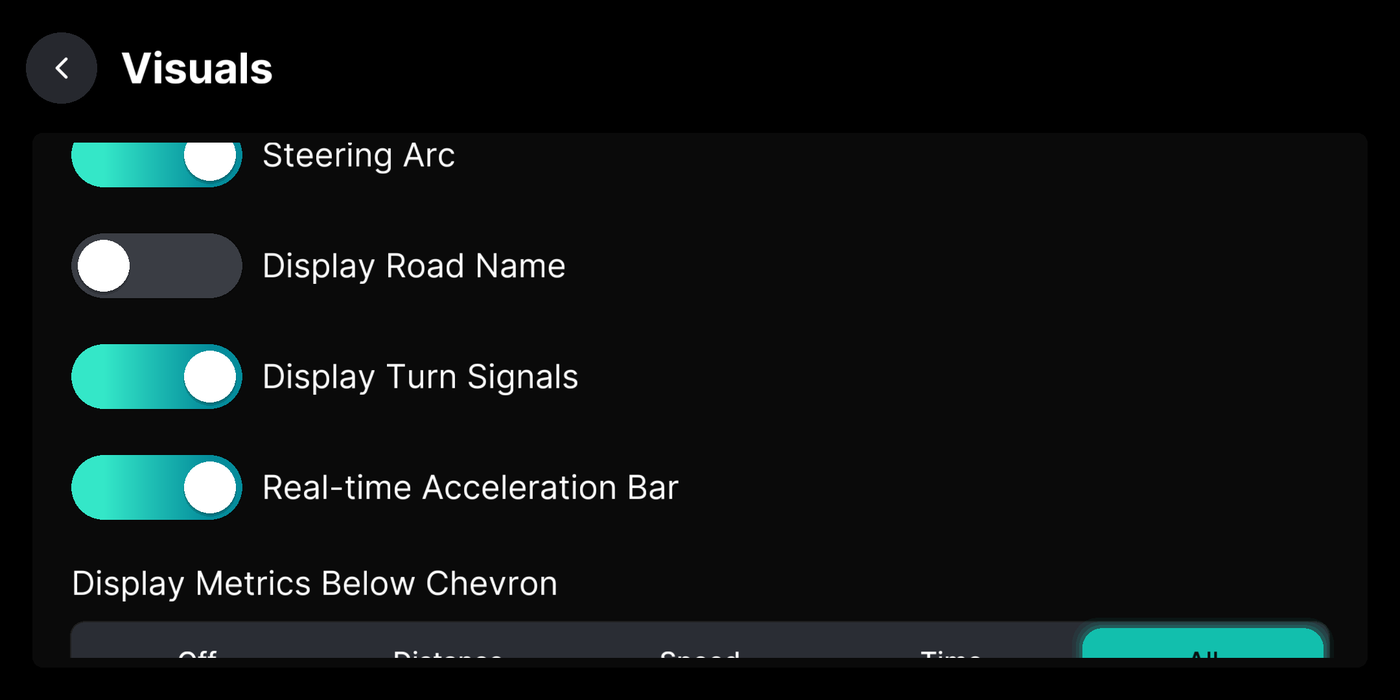
Section titled “Display Road Name”Show the current road name while driving. Needs local map data installed.
Where to find it
Display Turn Signals
Section titled “Display Turn Signals”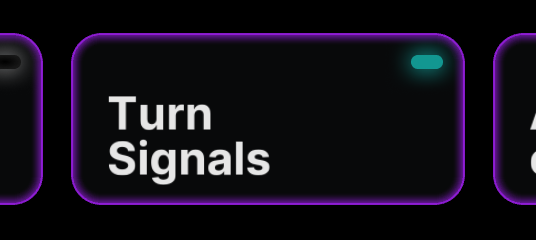
Real-time Acceleration Bar
Section titled “Real-time Acceleration Bar”A bar showing how hard the car is speeding up or slowing down right now.
Where to find it
Display Metrics Below Chevron
Section titled “Display Metrics Below Chevron”Show the lead car’s distance, speed, or time gap under its marker. Needs iQ.Pilot longitudinal.
Where to find it
Onroad Developer UI
Section titled “Onroad Developer UI”Night Mode
Section titled “Night Mode”Switches the display to a darker night look after dark. Toggle it from the row of buttons at the top of the settings screen.
Accent Color
Section titled “Accent Color”On the comma 4, the interface accent color follows the color you set in your paired Konn3kt account under Appearance. Change it there and the device matches on its next sync.