

Visuals
Open this from Settings → System → Visuals. It controls how bright the device screen is and what iQ.Pilot draws on top of the camera while you drive.
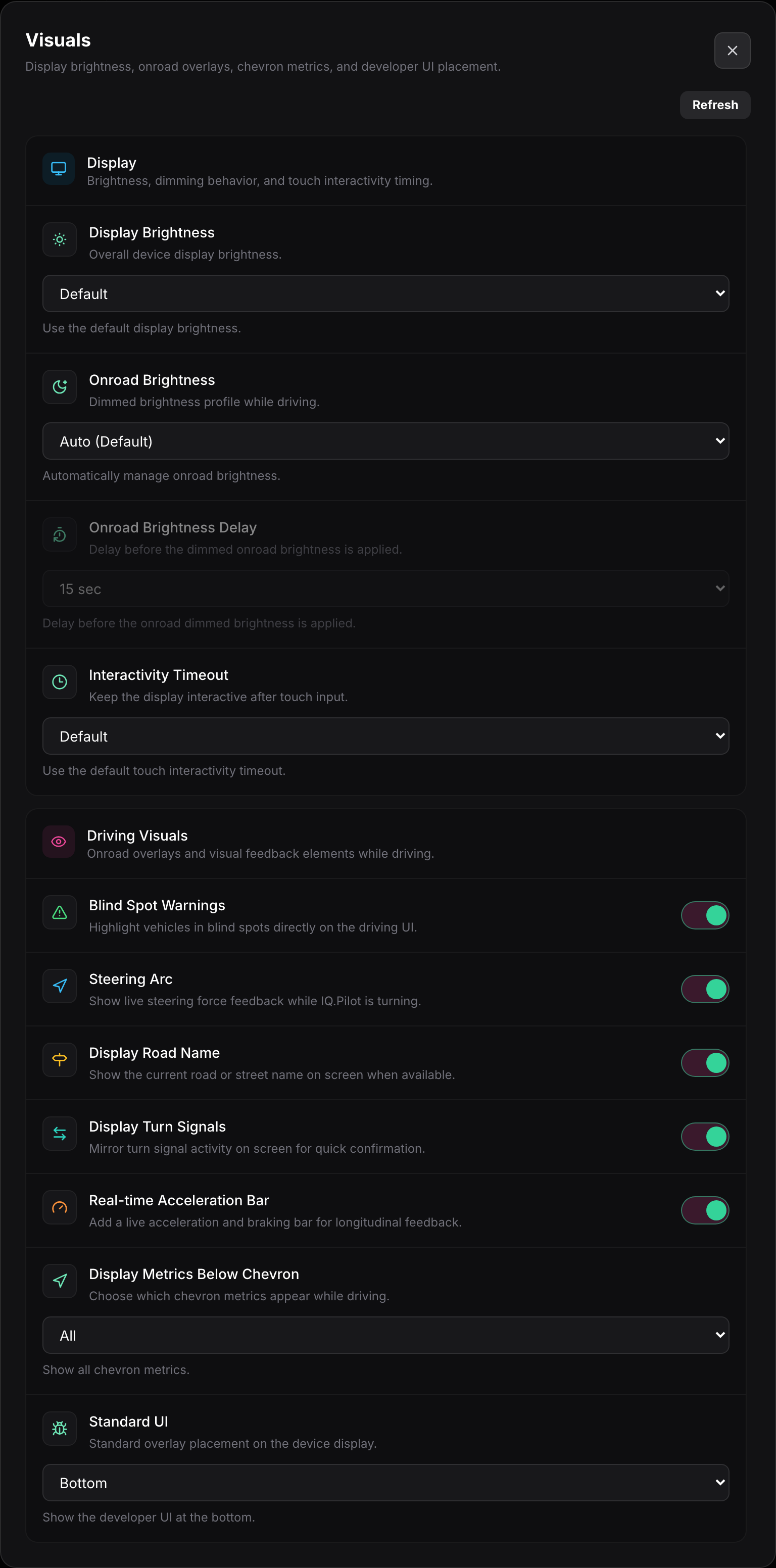
Display
Section titled “Display”- Display Brightness sets the overall screen brightness. Leave it on Default to let the device manage it, or pick a fixed level.
- Onroad Brightness is a separate, usually dimmer brightness the screen drops to while driving so it is not distracting at night. Auto (Default) manages it for you.
- Onroad Brightness Delay is how long the device waits after you start driving before it applies the dimmed onroad brightness. The default is a short delay like 15 seconds.
- Interactivity Timeout is how long the screen stays fully responsive after you touch it before it dims or locks out touches again.
Driving Visuals
Section titled “Driving Visuals”These toggles control the overlays iQ.Pilot draws on the driving screen.
- Blind Spot Warnings highlights vehicles it detects in your blind spots right on the driving UI.
- Steering Arc draws a live arc showing the steering force iQ.Pilot is applying while it turns.
- Display Road Name shows the current road or street name on screen when it is available.
- Display Turn Signals mirrors your turn signal activity on the screen for quick confirmation.
- Real-time Acceleration Bar adds a live bar showing acceleration and braking, useful feedback on how the longitudinal control is behaving.
- Display Metrics Below Chevron chooses which metrics appear under the lead-car chevron while driving. All shows every available metric.
- Standard UI sets where the overlay sits on the device display, for example anchored to the Bottom.