

Navigation
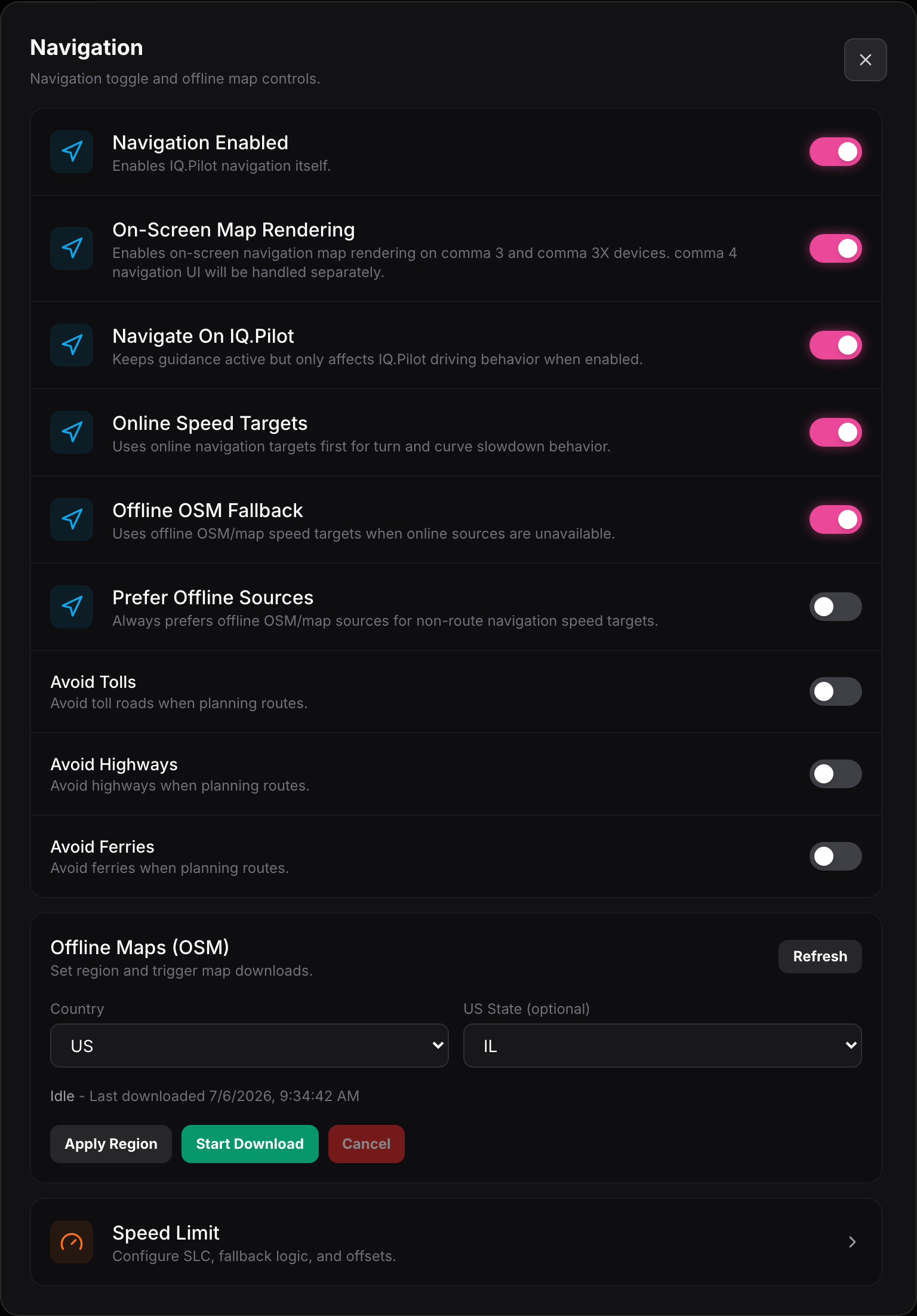
Open this from Settings → System → Navigation. It controls the device’s own navigation, where its speed data comes from, how it routes, and the offline maps it keeps on board.
Guidance
Section titled “Guidance”- Navigation Enabled turns iQ.Pilot navigation on or off entirely.
- On-Screen Map Rendering draws the navigation map on the device screen. This applies to comma 3 and comma 3X. The comma 4 navigation UI is handled separately.
- Navigate On IQ.Pilot keeps guidance running but only lets it affect driving behavior (like slowing for turns) when this is on.
Speed targets
Section titled “Speed targets”These decide where the device gets the speeds it uses for slowing into turns and curves.
- Online Speed Targets uses online navigation data first for turn and curve slowdowns.
- Offline OSM Fallback falls back to offline OpenStreetMap speed data when online sources are not available.
- Prefer Offline Sources always prefers offline OSM data for non-route speed targets, useful if you drive where you have no signal.
Routing
Section titled “Routing”- Avoid Tolls keeps toll roads out of planned routes.
- Avoid Highways keeps highways out of planned routes.
- Avoid Ferries keeps ferries out of planned routes.
Offline Maps (OSM)
Section titled “Offline Maps (OSM)”Download map data so navigation works without a connection.
- Country and US State (optional) pick the region to download.
- Apply Region saves your selection.
- Start Download begins downloading the maps, and Cancel stops a download in progress. The status line shows the last download time and whether it is idle or running.
Speed Limit
Section titled “Speed Limit”Opens the SLC (speed limit control) settings, where you configure how the device reads speed limits, what it falls back to, and any offset you want applied.