

Live View
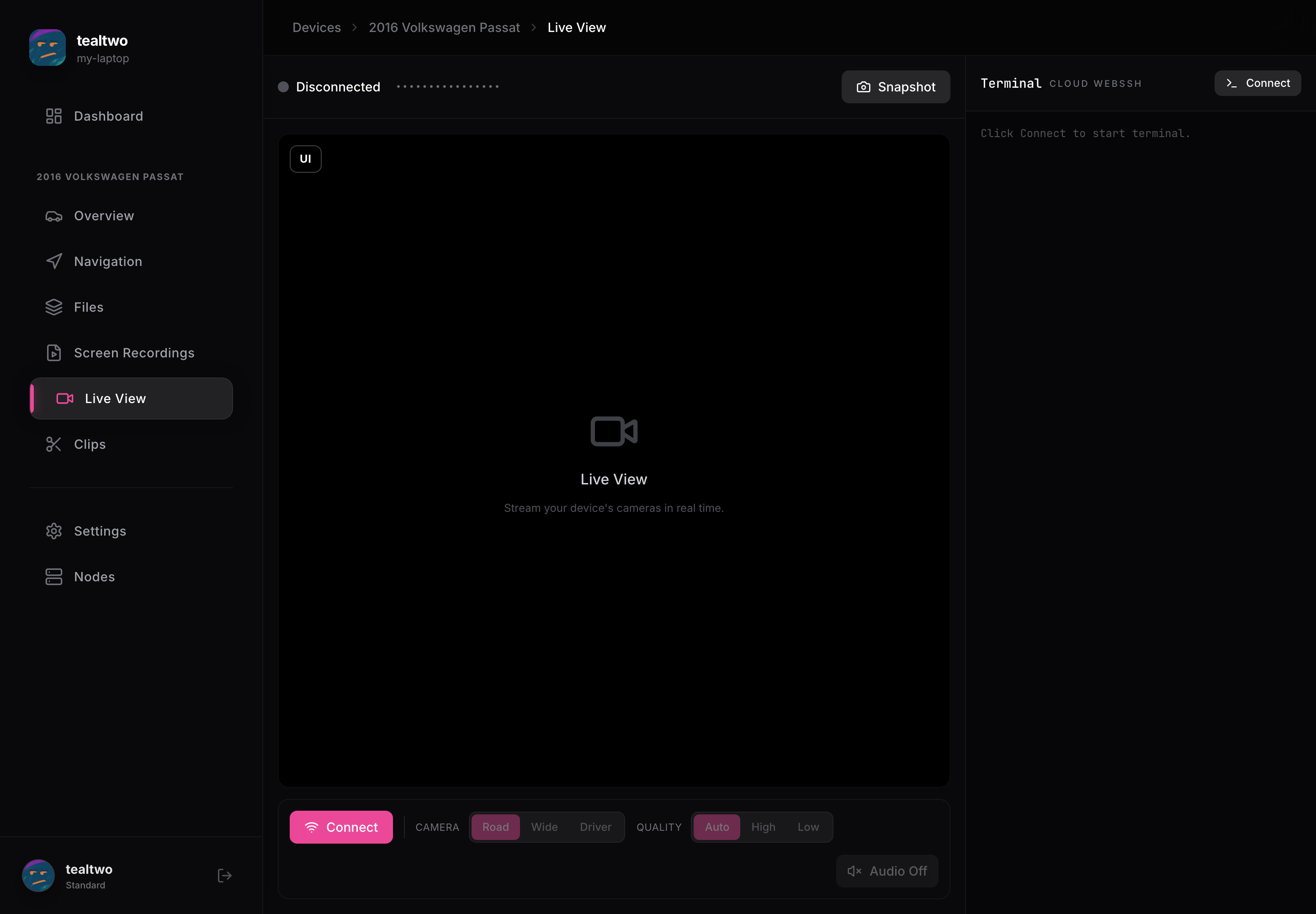
Live View streams the device’s cameras to your browser in real time and gives you a cloud shell into the device. It works remotely from anywhere, over the internet, as long as the device is online, and it works whether the car is parked (offroad) or driving (onroad). The stream runs at full quality. Everything you need sits in the bar along the bottom and the panel on the right.
Connecting
Section titled “Connecting”The status in the top left reads Disconnected until you start a stream. Press Connect in the bottom bar to open the stream, and the same button becomes Disconnect to stop it. Streaming uses the car’s data connection, so on cellular it counts against your data.
Cameras
Section titled “Cameras”The CAMERA switch picks which camera you are watching. The device has three:
- Road is the main forward camera, the narrow one that sees far down the road. This is the view you want most of the time.
- Wide is the forward wide-angle camera. It has a fisheye look and takes in the whole scene in front of the car, curb to curb.
- Driver is the cabin camera that faces the driver. It is what the device uses for driver monitoring.
Quality
Section titled “Quality”The QUALITY switch trades sharpness against smoothness:
- Auto adapts to your connection and is the safe default.
- High sends the best image but needs a strong connection, and can stutter on cellular.
- Low keeps the stream smooth on a weak connection at the cost of detail.
UI overlay
Section titled “UI overlay”The UI button in the top left of the video streams the full iQ.Pilot on-screen interface directly, the same thing you would see on the device screen. When the car is onroad, that includes the live model path, the lane lines, the lead-car chevron, and the driving readouts drawn over the road. When it is parked, it shows the offroad UI. Turn it off to see the raw camera image with nothing drawn on it.
Snapshot and audio
Section titled “Snapshot and audio”- Snapshot grabs a still frame of whatever you are watching and saves it, handy for capturing something without recording the whole stream.
- Audio Off / Audio On toggles the microphone feed from the device so you can hear as well as see. It starts off.
Terminal
Section titled “Terminal”The panel on the right is a Cloud WebSSH terminal straight into the device. Press its Connect button to open a shell for advanced troubleshooting, then run commands as if you were sitting at the device. Most people never need this.