

Flashing (IQ.OS Flash)
IQ.OS Flash at iqos.iqlvbs.com is the web flasher for reinstalling IQ.OS, the operating system your IQ.Pilot compatible device runs on. It runs entirely in the browser and talks to the device over USB, so there is nothing to install on your computer. Use it to set up a new device, recover one that will not boot, or switch what it runs.

The flasher walks you through four steps across the top: Device → Software → Connect → Flash.
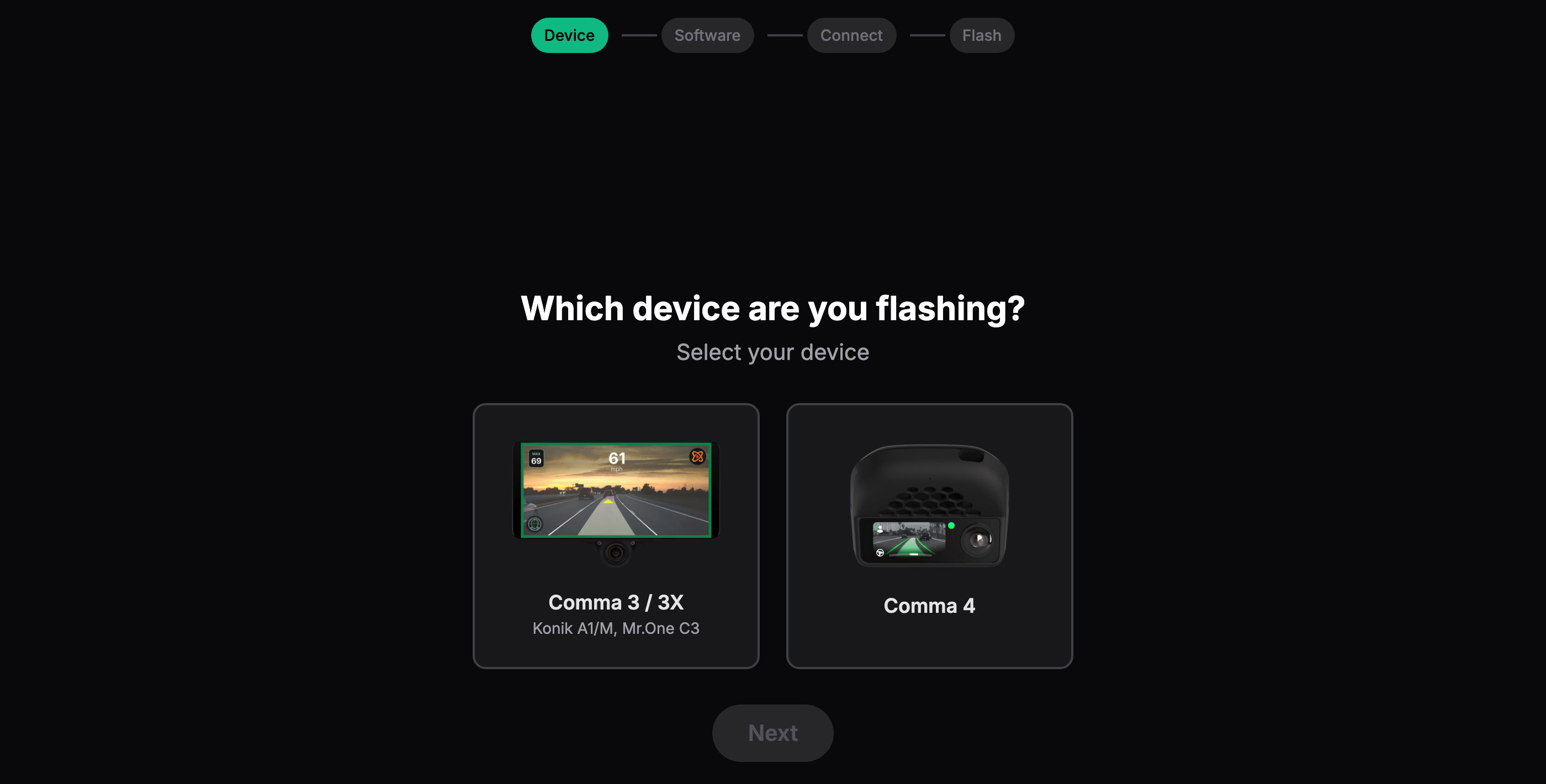
1. Device
Section titled “1. Device”Pick the device you are flashing.
- Comma 3 / 3X covers the comma 3 and 3X, including the Konik A1/M and Mr.One C3.
- Comma 4 covers the comma 4.
2. Software
Section titled “2. Software”Choose what to install. This is where you decide whether IQ.Pilot comes pre-installed.
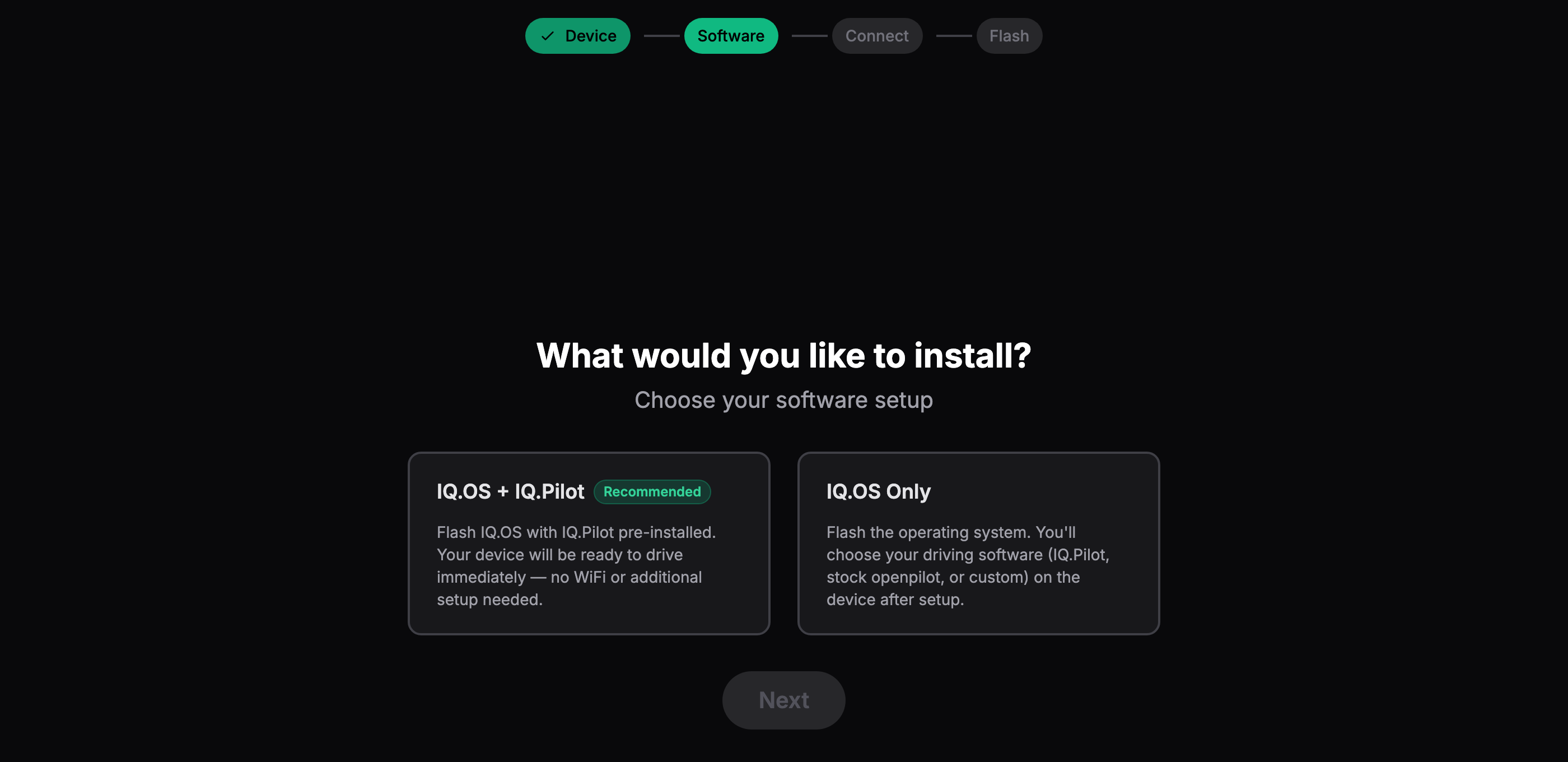
- IQ.OS + IQ.Pilot (recommended) flashes IQ.OS with IQ.Pilot already installed. The device is ready to drive immediately, with no Wi-Fi or extra setup. Pick this if your device needs IQ.Pilot or you just want the easy, all-in-one install.
- IQ.OS Only flashes just the operating system. You then choose your driving software on the device after setup, whether that is IQ.Pilot, stock openpilot, or something custom.
3. Connect
Section titled “3. Connect”Put the device into flashing mode and plug it into your computer. The flasher shows the exact ports for the device you picked.
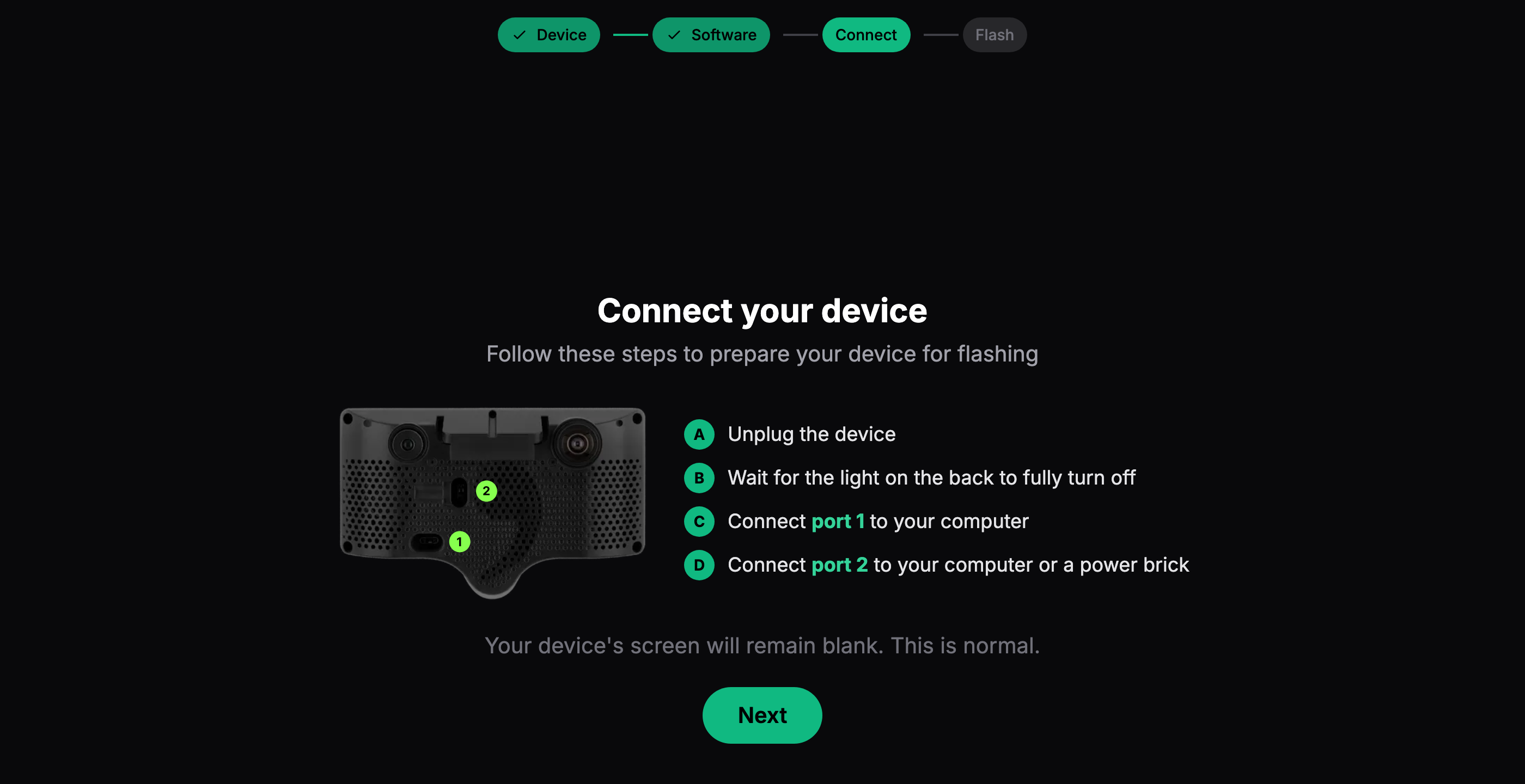
- Unplug the device.
- Wait for the light on the back to fully turn off.
- Connect port 1 to your computer.
- Connect port 2 to your computer or a power brick.
The device’s screen stays blank the whole time. That is normal, so do not wait for anything to appear on it.
4. Flash
Section titled “4. Flash”Open the browser’s device selector and pick the device to begin.
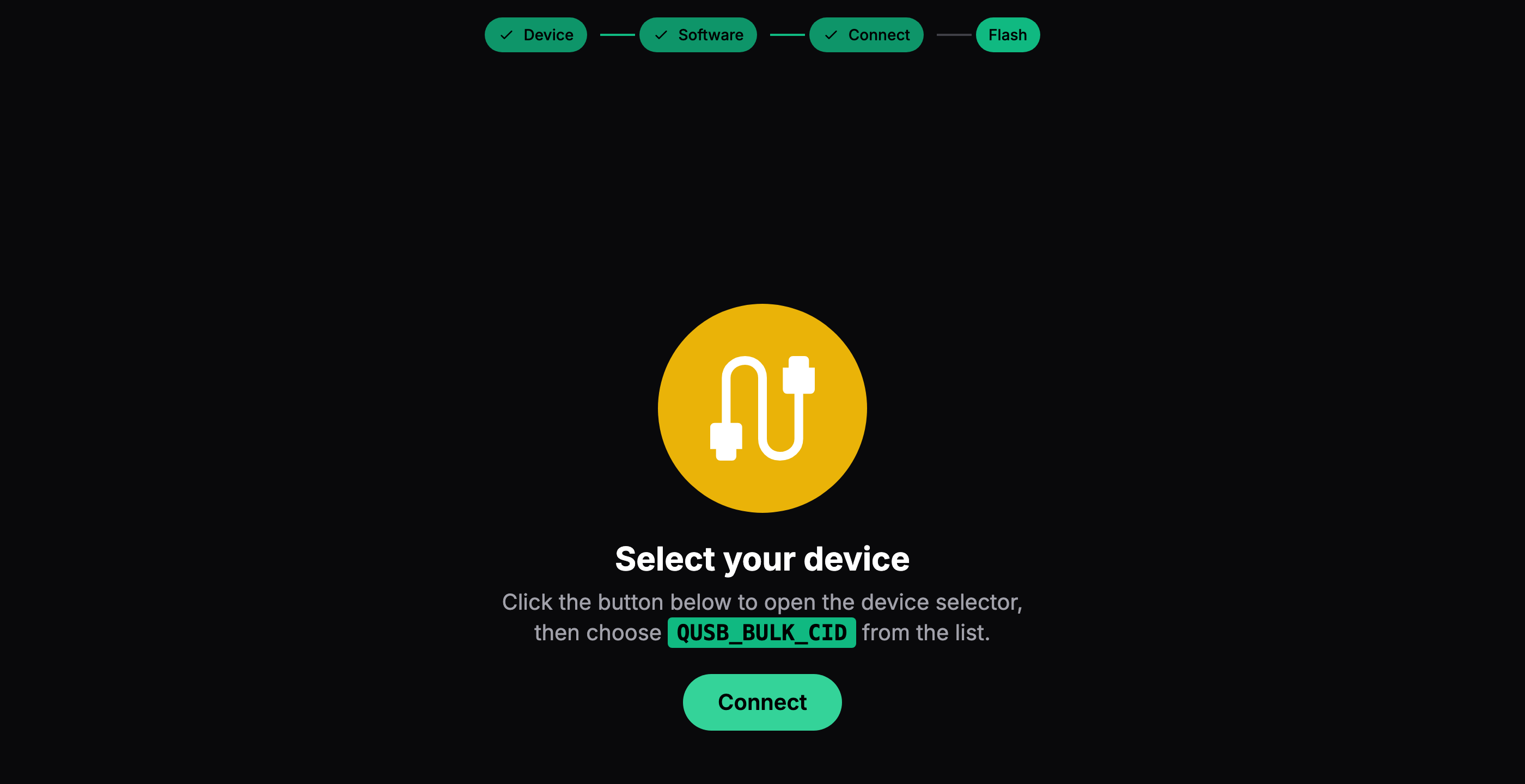
Click Connect, then choose QUSB_BULK_CID from the list your browser shows. The flasher then writes IQ.OS (and IQ.Pilot, if you chose that) to the device and shows progress until it finishes.