

Mobile App
The Konn3kt mobile app puts your device in your pocket. It has the same account, devices, and live data as the web app, laid out for a phone. Sign in with GitHub, Google, or Apple, or tap Try Demo Mode to look around first. Four tabs run along the bottom of every screen: Home, Devices, Drives, and Profile.
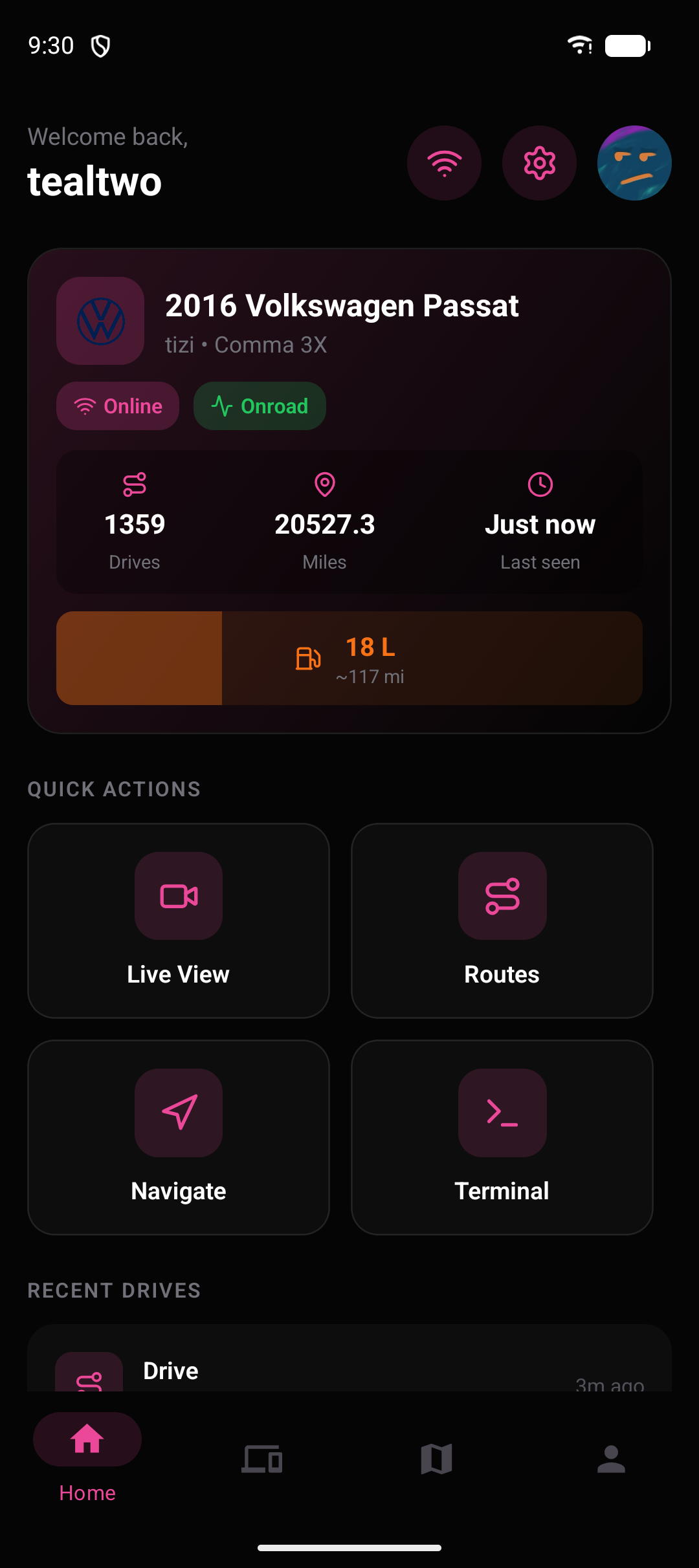
The Home tab shows your default device at a glance.
- Welcome header greets you by username. The three icons top right are the connectivity indicator, the Settings gear, and your profile avatar.
- Device card names the car, with its hardware type (
tizi,tici, ormici) and model underneath. - Online / Offline shows whether the device is reachable, and Onroad / Parked shows whether the car is being driven right now.
- Drives is the lifetime trip count, Miles is lifetime distance, and Last seen is when the device last checked in.
- Fuel gauge shows the current fuel level in liters and an estimated range.
- Quick Actions are four shortcuts: Live View (cameras), Routes (drive history), Navigate (send a destination), and Terminal (device shell).
- Recent Drives lists your latest trips with distance, duration, and how long ago each was.
Device Stats
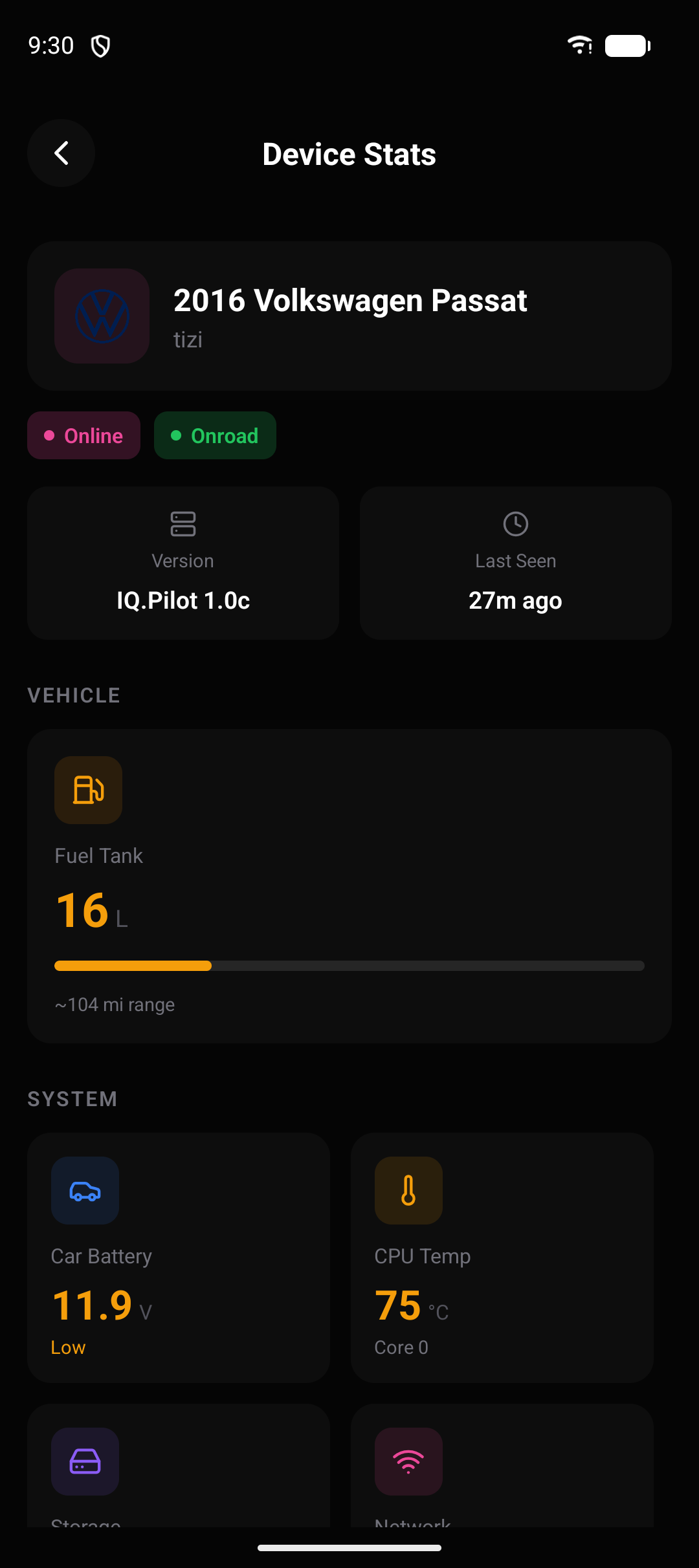
Section titled “Device Stats”Tapping Device Stats opens the full readout for the car:
- Version is the iQ.Pilot build the device is running, and Last Seen is its last check-in.
- Fuel Tank shows the level and estimated range.
- Car Battery is the 12V battery voltage, flagged Low when it drops.
- CPU Temp is the device processor temperature.
- Storage is free space on the device, and Network shows its connection type.
Devices
Section titled “Devices”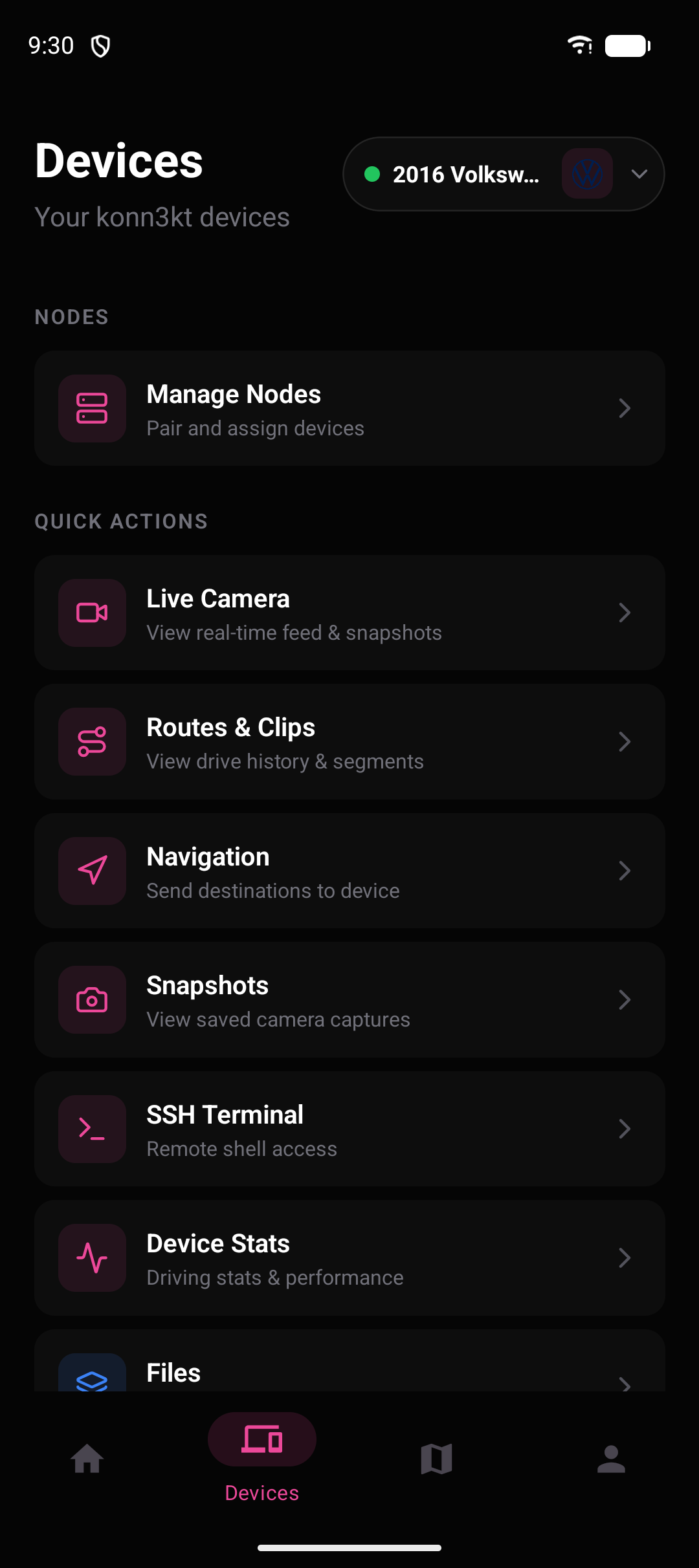
The Devices tab is the hub for one car at a time.
- Device dropdown (top right) switches which car every action below applies to. The green dot means it is online.
- Manage Nodes opens self-hosted storage pairing.
- Live Camera opens the real-time camera feed and snapshots.
- Routes & Clips opens your drive history and segment clips.
- Navigation sends destinations to the device.
- Snapshots shows saved camera captures.
- SSH Terminal opens a remote shell into the device.
- Device Stats opens the full stats readout.
- Files browses the files stored on the device.
Drives
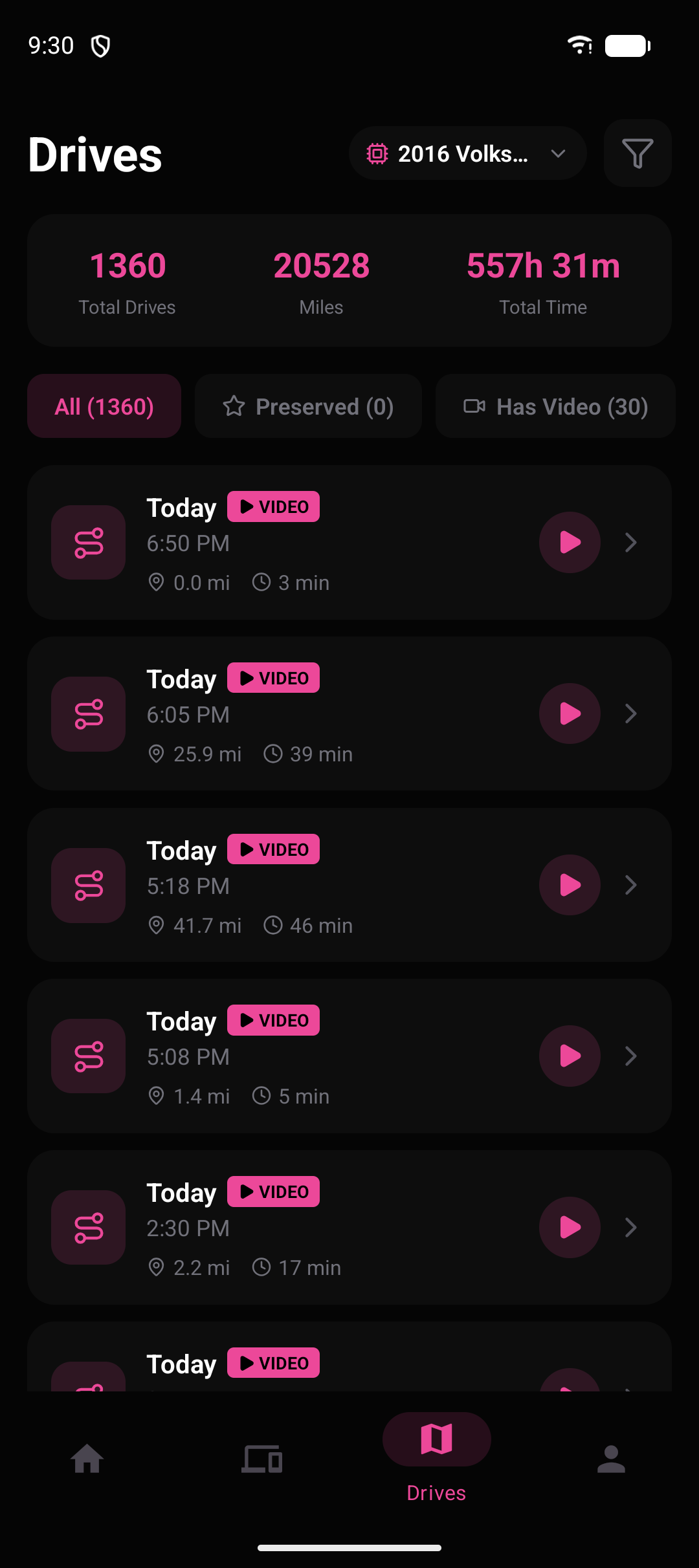
Section titled “Drives”The Drives tab lists every trip for the selected car.
- The bar at the top totals Total Drives, Miles, and Total Time.
- The filter chips show All, Preserved (drives you saved from cleanup), and Has Video.
- Each row shows the date and time, a VIDEO badge when footage exists, the distance, and the duration. The play button watches it back, and the chevron opens the drive.
- The device dropdown and the filter icon (top right) narrow the list.
Navigation
Section titled “Navigation”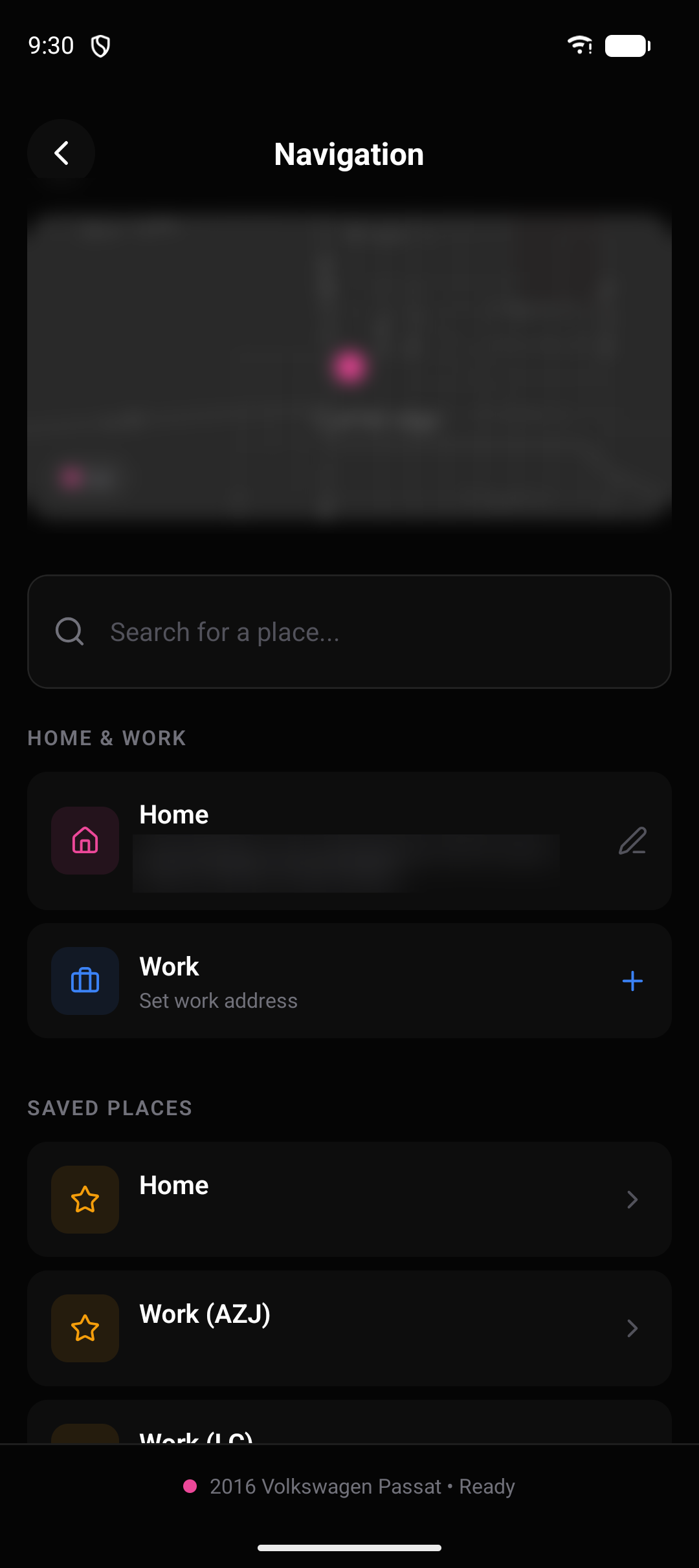
Navigate sends a destination to the car and manages your places.
- The map at the top shows where the car is now. The Car chip marks its live position with a pin.
- Search for a place finds an address or point of interest to send to the device.
- Under Home & Work, Home shows your saved home address with a pencil to edit it, and Work lets you set a work address with the +.
- Saved Places lists your starred and recent destinations, each with a chevron to open it.
- The bar at the bottom names the active car and its state (for example Ready).
Profile
Section titled “Profile”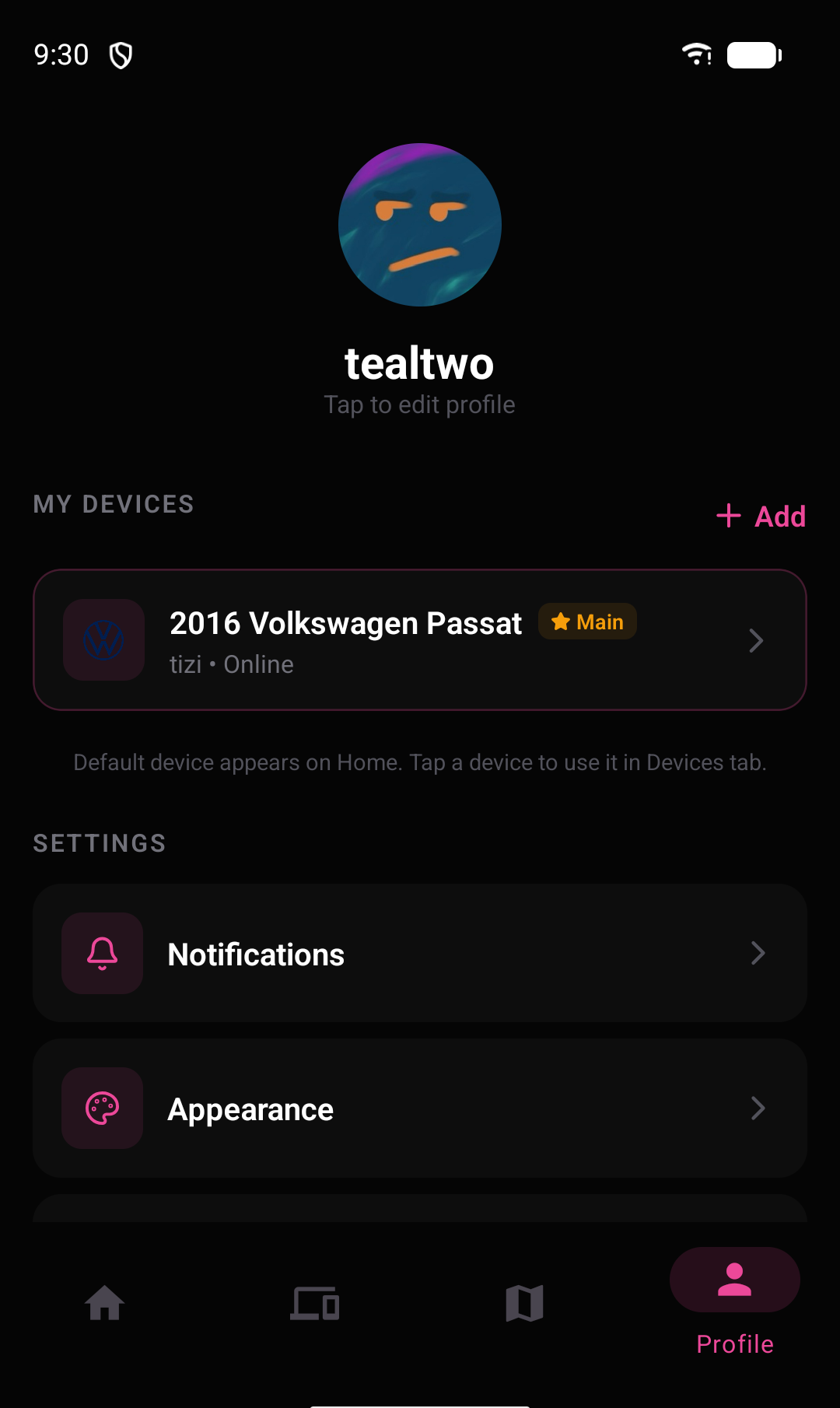
The Profile tab holds your account and the app-level settings.
- The avatar, username, and Tap to edit profile open your account details.
- My Devices lists every paired car. The Main star marks the one that shows on Home, and Set Default promotes another car to Main. + Add pairs a new device.
- Notifications controls which push alerts the app sends you.
- Appearance sets the app’s accent color and theme.
- Further down, Device IP Configuration and the support links round out the settings.
When the device is online
Section titled “When the device is online”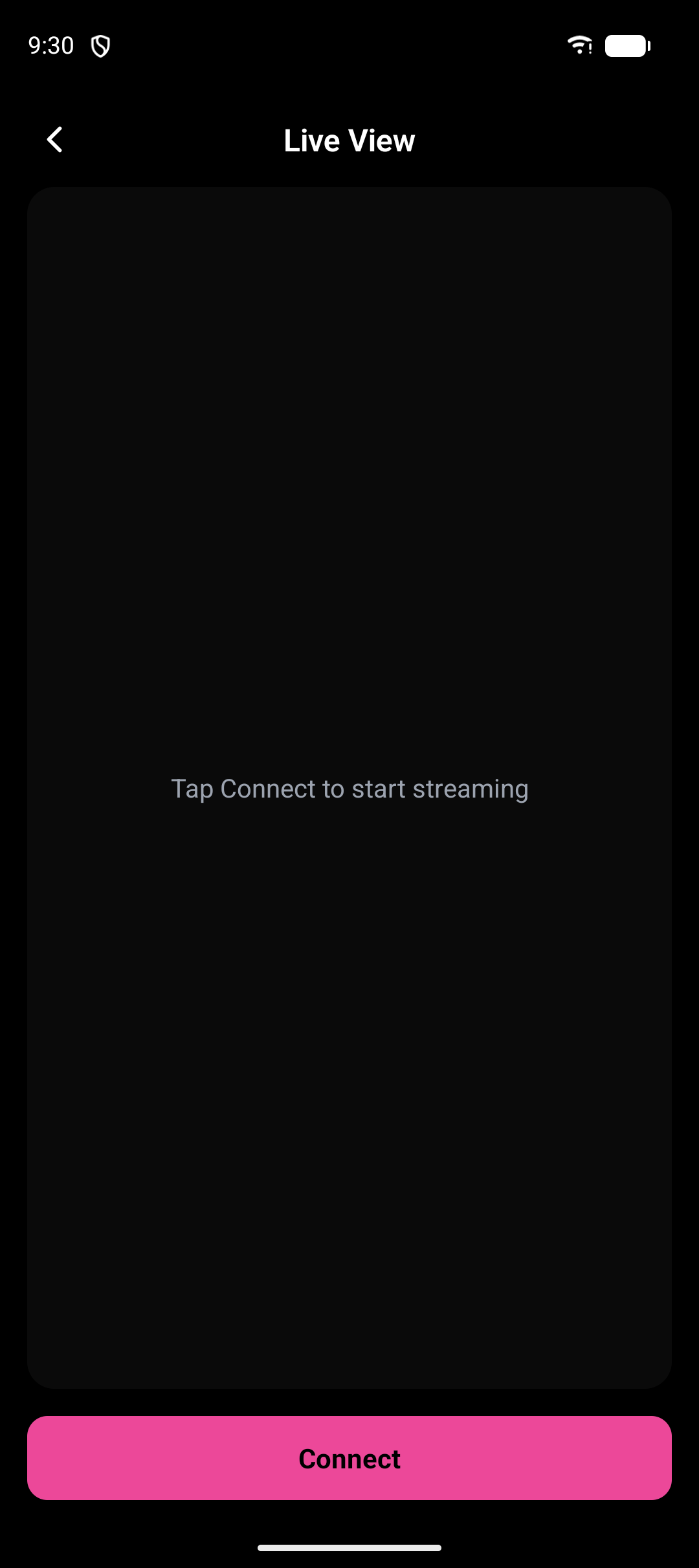
These three open a live connection, so they show a starting screen until you connect.
Live View streams the car’s cameras remotely, from anywhere over the internet, at full quality. It works whether the car is parked (offroad) or driving (onroad).
- The video area fills the screen and reads Tap Connect to start streaming until you begin.
- Connect starts the stream and turns into Disconnect. The app asks for microphone permission the first time so it can carry audio.
- Once connected, the controls let you switch between the Road, Wide, and Driver cameras, pick a stream quality, take a snapshot, and toggle audio.
- You can also stream the iQ.Pilot UI directly instead of the raw camera. When the car is onroad this includes the live model path and the driving overlays, exactly as they appear on the device screen.
- These are the same controls documented in detail on the Live View page.
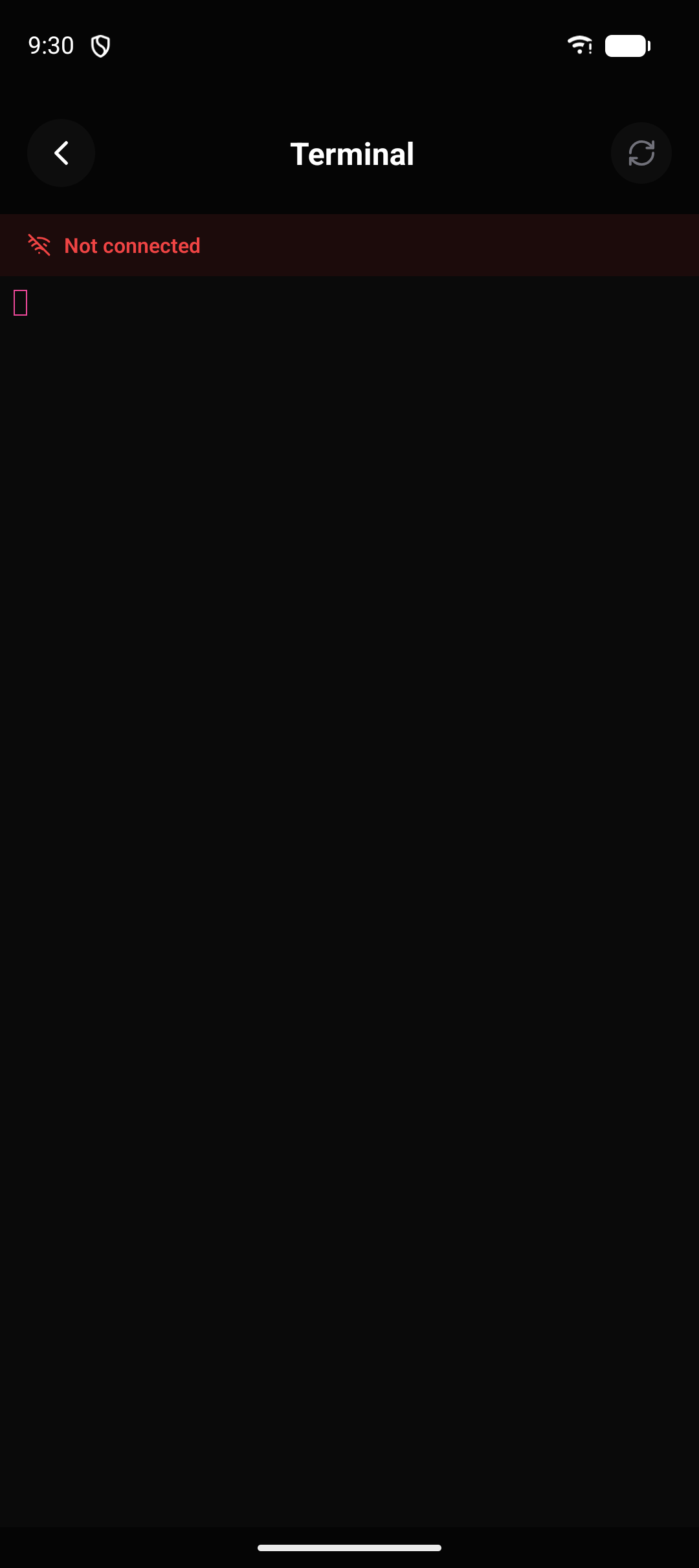
Terminal is a cloud shell into the device.
- It shows Not connected with a shell cursor until the device is reachable.
- The refresh icon (top right) retries the connection. Once connected you type commands straight into the device.
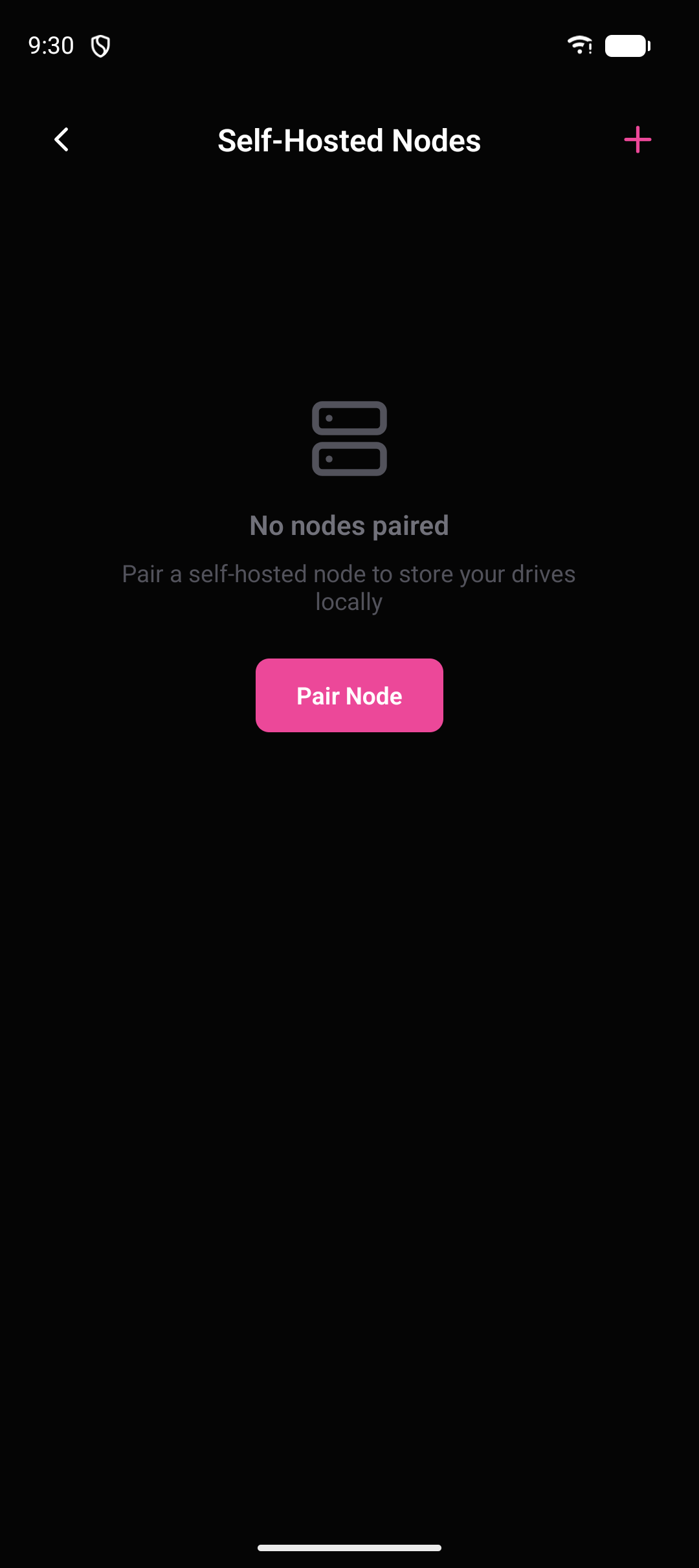
Self-Hosted Nodes stores your drives on your own hardware.
- With none paired it reads No nodes paired and explains that pairing a node stores drives locally instead of in the cloud.
- Pair Node (or the + in the header) starts pairing. Once a node is paired, new drives can be stored on it.